Android Hardware
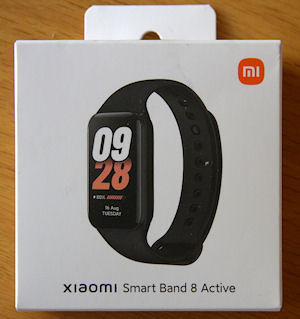
Xiaomi Smart Band 8 Active
Introduction
I recently purchased a Xiaomi Smart Band 8 Active, not for use as a fitness tracker, but rather to use its SpO2 capabilities. After my corona episode, I have been battling with oxygen levels which remain persistently low. What I was looking for was a device which I could use anywhere without having to carry a pulse oximeter with me all the time.
There are many features in the Smart Band 8 Active's list of health categories which could be useful to me. The question is do they work or are they just gimmicks?
In addition to the Smart Band 8 Active, I also looked at the Smart Band 8 and the Smart Watch 3 Active. The last two have more features, but they were almost twice the price. I am pretty sure that the sensors in these devices are pretty similar, so I went for the cheapest one. I liked the shape of the Smart Watch 3 Active, but the size was just to big for my skinny wrists (the Smart Band 8 Active is probably about as big as I would like to go). I did not like the rounded shape of the Smart Band 8 at all.
Manual and Setup
The manual is pretty useless as the microscopic text is very difficult to read. The single page of English information is also sorely lacking, with only a slight hint on how to start the device from the diagrams.
To switch on the watch, you first have to attach it to a charger with the supplied charging cable. This cable has a magnetic plug and the magnets only allow one possible orientation for connecting the plug. Once the charging screen is active, you can swipe to the right to access the watch. If the charge level is sufficient, you can disconnect the charger and play around with the device.
The first thing you are presented with is a QR code. If you scan this code from your phone, you are taken to the download page for the Mi Fitness app in the Google Play Store. This app will "guide" you through setting up the watch. You have to create a Xiaomi account to access the features of the app, such as extra watch faces. My Xiaomi Redmi Note 12 was already connected to my Xiaomi account, so the Mi Fitness app picked that up without me having to do anything.
On the watch, the "Home Page" is the clock. Swiping around from the clock gives you access to other screens:
- Down gives the notifications screen. The notifications that you want the watch to receive from your phone is assigned in the app.
- Up gives a list of items that the watch can monitor and track. The order of these can be changed from the app.
- Swiping to the left or right from the clock face puts you on a carousel of widgets. The widgets on this carousel can be set up from the app.
- Swiping to the right from any screen takes you to a preceding screen and eventually back to the clock face.
If you play around with the items on the app's device page, and see what happens on the watch, you can get a feel for the interaction between the app and the watch (and vice versa). Some things do leave you a bit in the dark though. Fortunately, there are a myriad of video clips available on Youtube. Not all of them are in English, but you can usually still get the gist of what is trying to be shown. Youtuber HardReset.Info has quite a few useful clips on how to do things on this device.
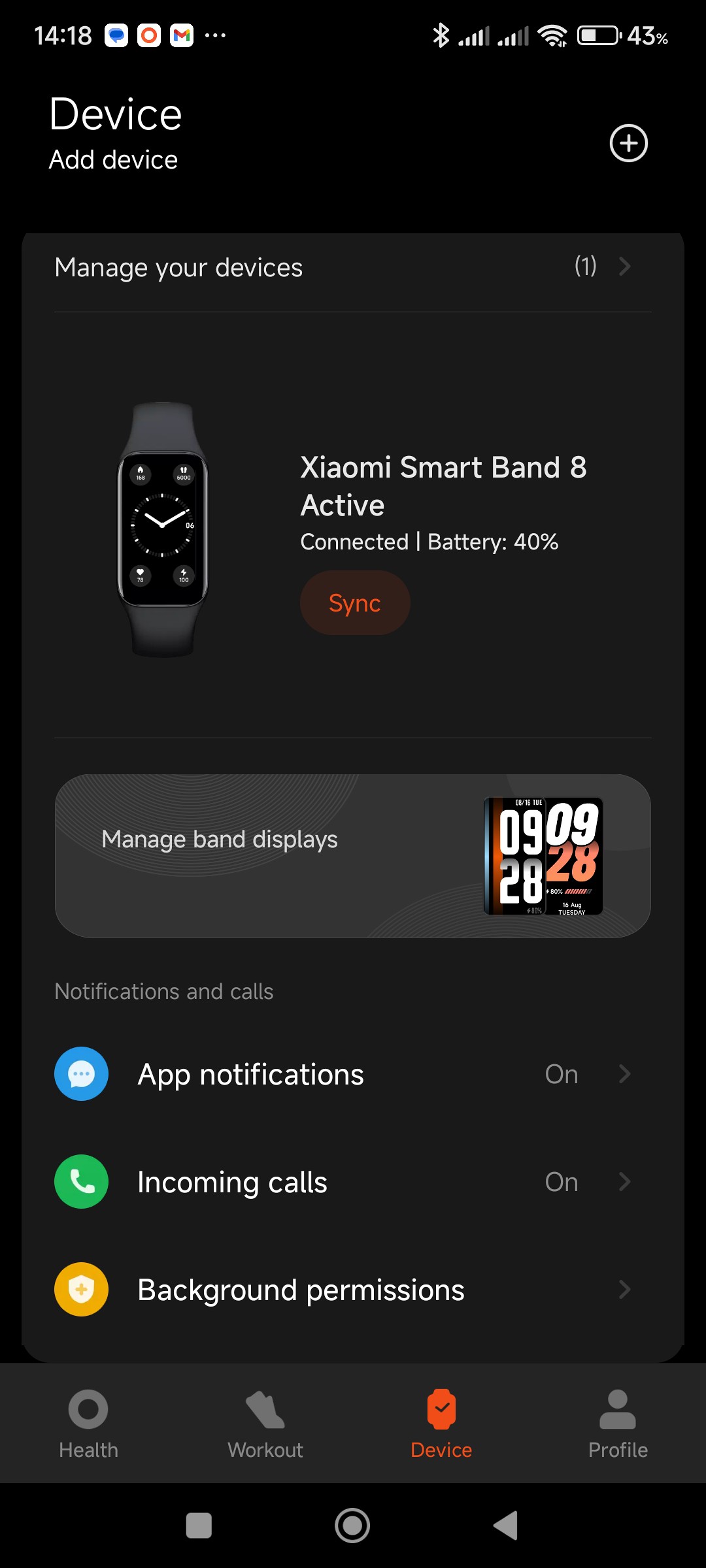
The Device screen in the Mi Fitness app
Strap
After you have set up the watch, you will want to strap it to your wrist to test the features. The strap has to be the absolute worst design for someone like me with skinny wrists. It is almost impossible to lock the clip and hold the retaining loop in place with one hand. Pat has to help me every time I put the watch on.
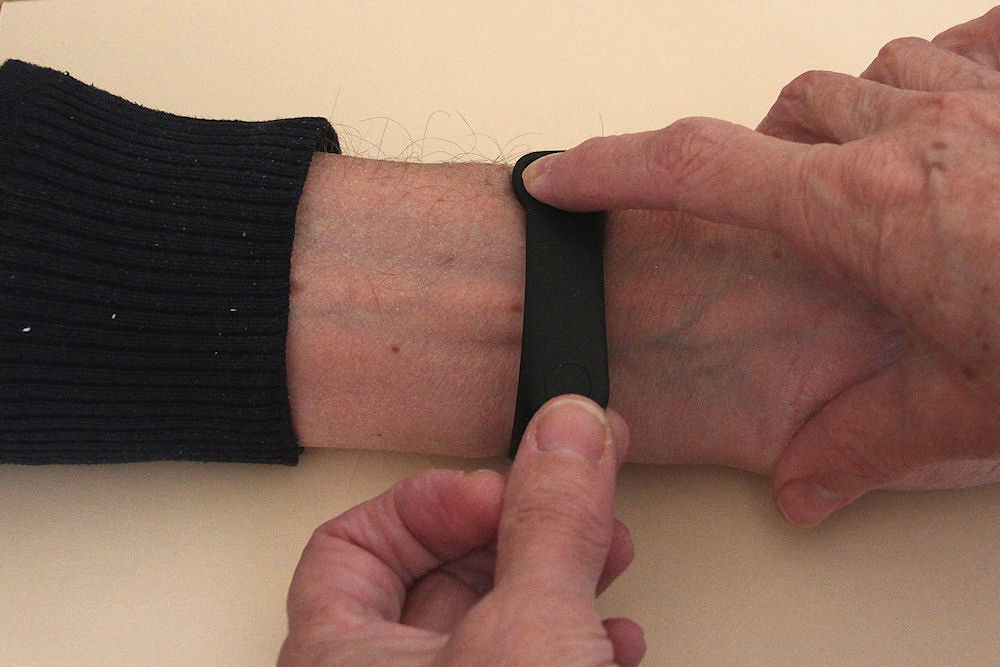
Locking the strap in position
I recently watched part of a "comparison" between a Samsung Galaxy Fit 3 and a Xiaomi Smart Band 8 on Youtube. I didn't watch for too long as all the presenter was doing was dissing the Xiaomi without actually doing a comparison. One thing I did pick up from the clip was that the presenter had reversed the strap on the Xiaomi. I thought this might be worth a try. At least with this orientation of the strap you can see the hole on the strap into which you are trying to insert the clip.
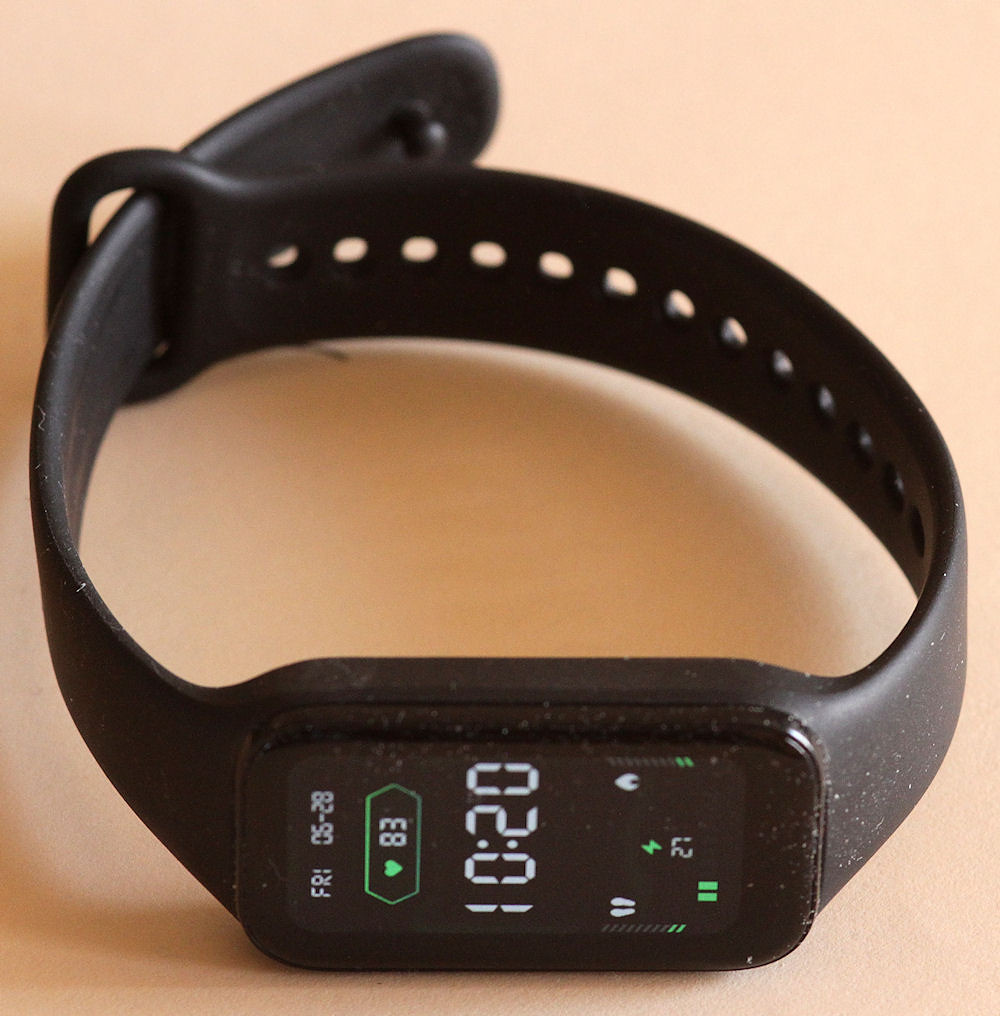
Reversed strap
This does make it a bit easier for me to lock the strap, but, as far as I am concerned, the strap is still poorly designed.
Watch Faces
The watch has two default faces available under System>Styles. There are about 100 further faces available which can be uploaded to the watch from the Mi Fitness app. A maximum of five faces are allowed on the watch, so if you want to try other faces, you will have to delete faces before you can upload new ones. Faces can be deleted from the Styles menu on the watch. The default faces cannot be deleted.
Most of the available faces don't appeal to me at all - I am not sure what is the target market for these faces.
Some of the faces include health parameters. I have gone with the Rhythm Multifunction as it has an analogue clock face with four useful parameters.
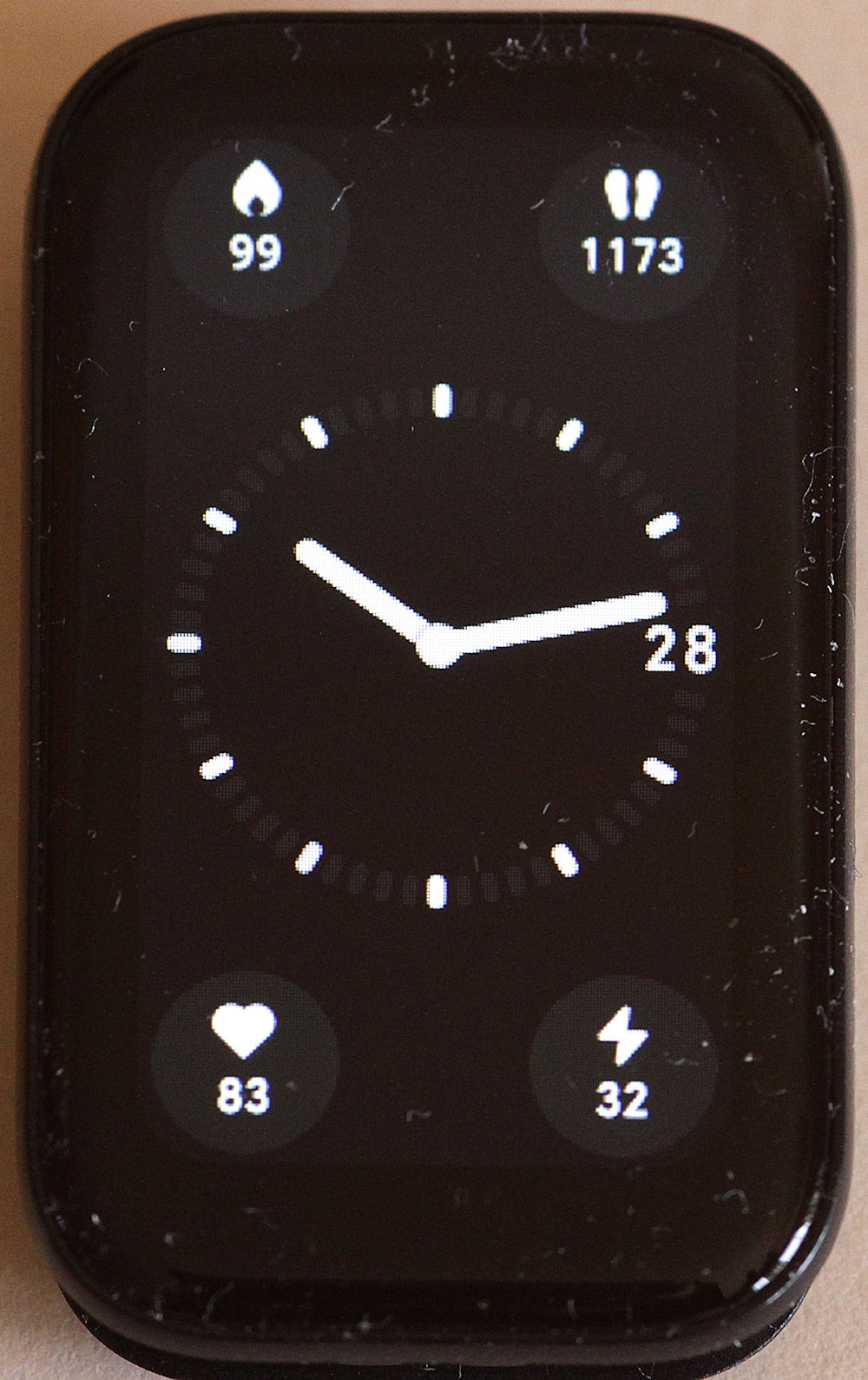
Rhythm Multifunction
Another face that appeals to me is Rhythm Electronics as it has some health parameters on the face. The clock has a digital readout, but what irks me a bit is that two of the parameters only show bar graphs, without numerical values.
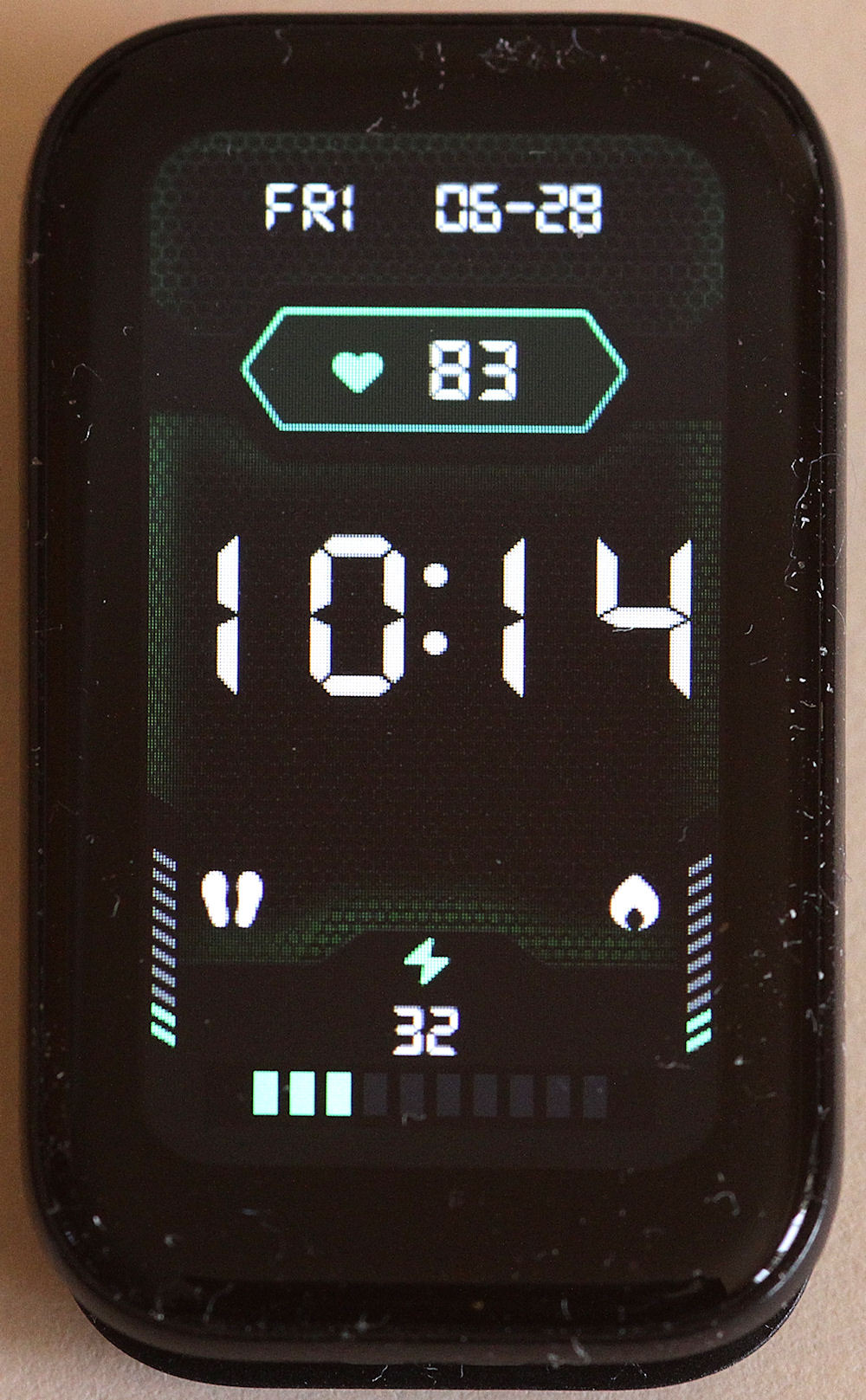
Rhythm Electronics
The final face that I like is Gadget. It may be slightly more appealing than the Rhythm Electronics as it has numbers associated with the step and calorie counters. However, the clock readout is a bit small.
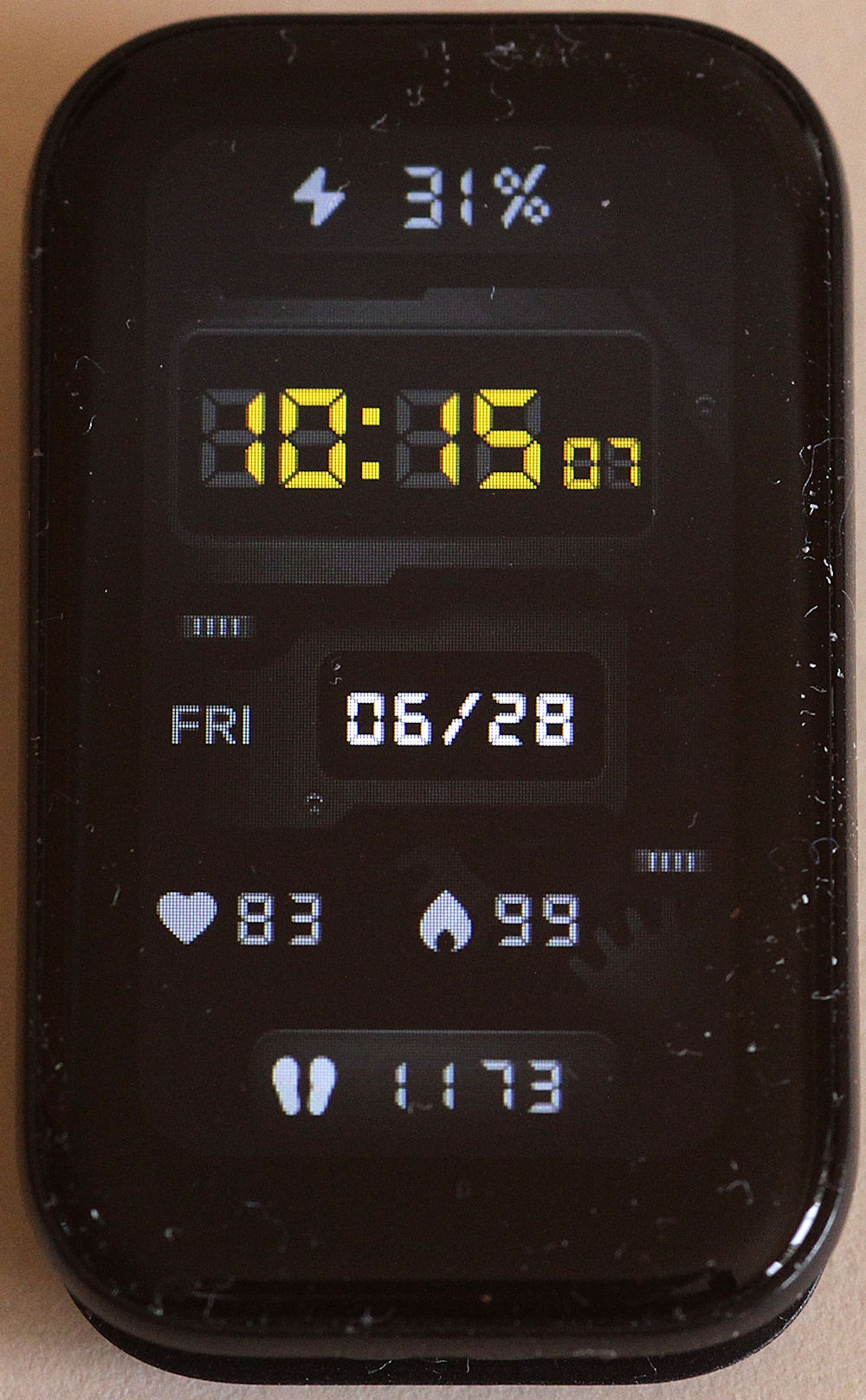
Gadget
There is a "custom" layout which you can use, but all that has is four placements for a digital clock, and you can add a background picture. What I would like to see is the ability to add or change health parameters on any watch face available. This would make the any of the faces more appealing to me. After all, the watch is a fitness tracker so surely you should expect some of the fitness parameters on the face.
Note that the date on all the faces (such as Rhythm Electronics and Gadget shown above) follows the US format of month-day rather than the phone's system format of day-month. I can find no way to change this.
You can also change a watch face on the watch by long pressing on the current face. This takes you into the System>Styles menu.
SpO2
As mentioned earlier, being able to measure SpO2, at any time, was the main reason for buying this watch. After my bout of corona, my SpO2 levels have remained low, hovering between 88% and 92% for more than six weeks. According to the clever people who populate the web, these values would warrant a visit to ER (and here I am, alive and well, sharing this information with you!).
The SpO2 readings from the watch were a big disappointment. They were consistently way too high when compared with my fingertip pulse oximeter. It shows oxygen levels to be normal (95%) to high (99%). On occasions they do actually match the values shown on the oximeter, but I have yet to find the conditions under which this happens.
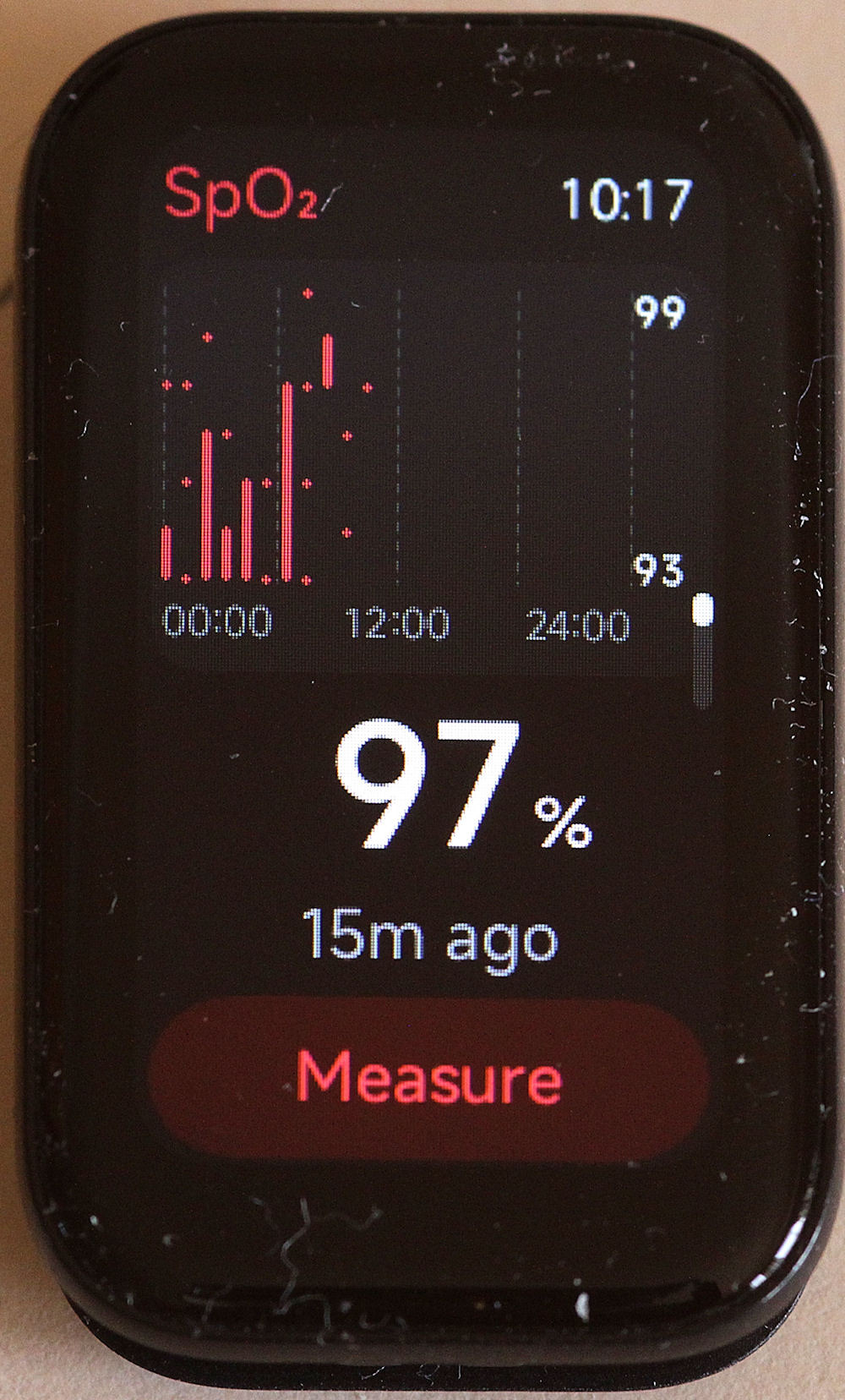
SpO2 screen on the watch
If you tap the Measure button as shown in the pic above, the watch will complain and not take a measurement if it regards your wrist as not being horizontal. What I find rather strange is that it does manage to take readings while you are exercising or sleeping, regardless of the angle of your wrist, .
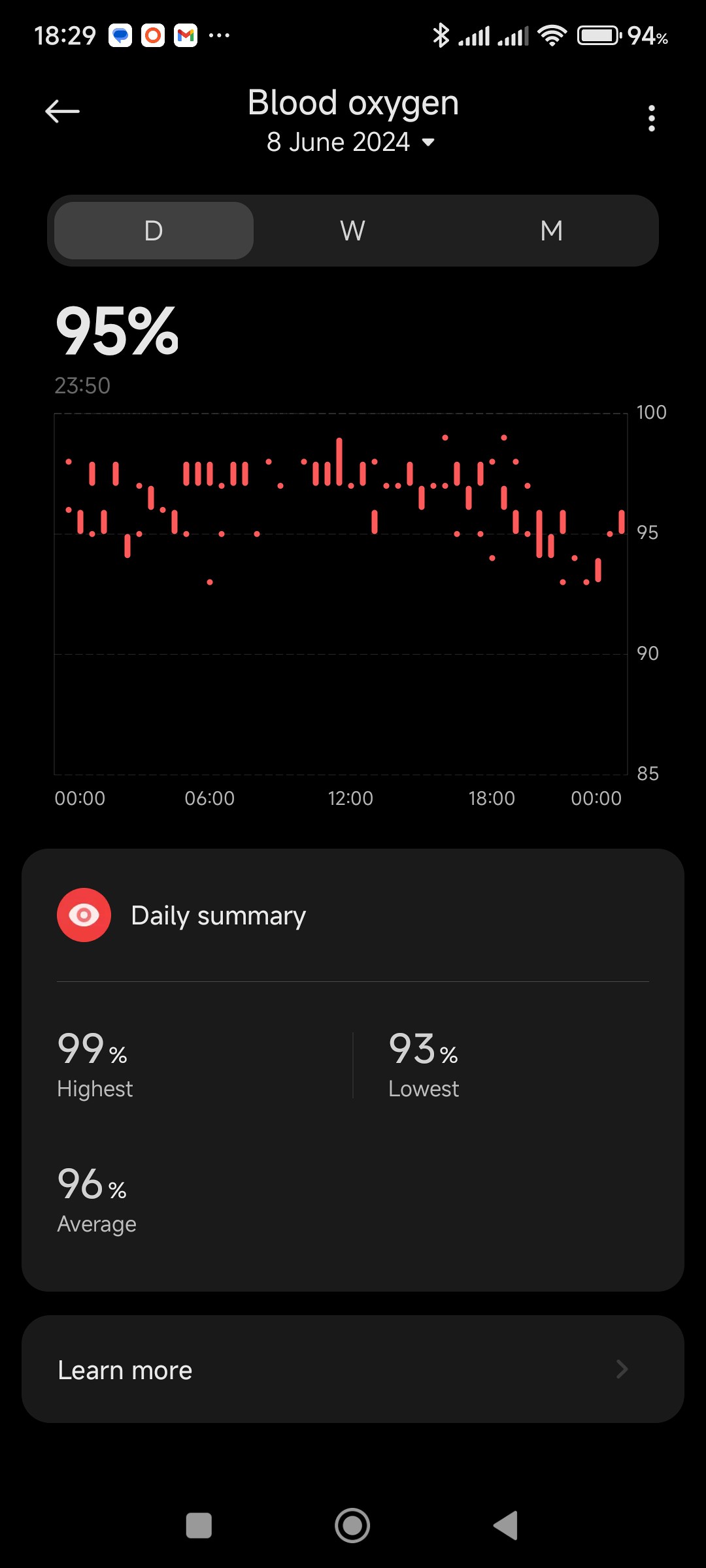
Almost random SpO2 values
What would be a great addition is some means to calibrate the SpO2 measurements. In this calibration mode, the watch could take a reading, then ask you to input a value obtained from a fingertip oximeter. After a few of these, the algorithms in the watch should be able to build a new look-up table for its SpO2 measurements.
Pulse
The pulse reading compares pretty well to value I get from my pulse oximeter. These readings are slightly higher than that given by my blood pressure monitor with a cuff. I am happy that after a "workout" the readings from the watch are at least comparable with the pulse oximeter.
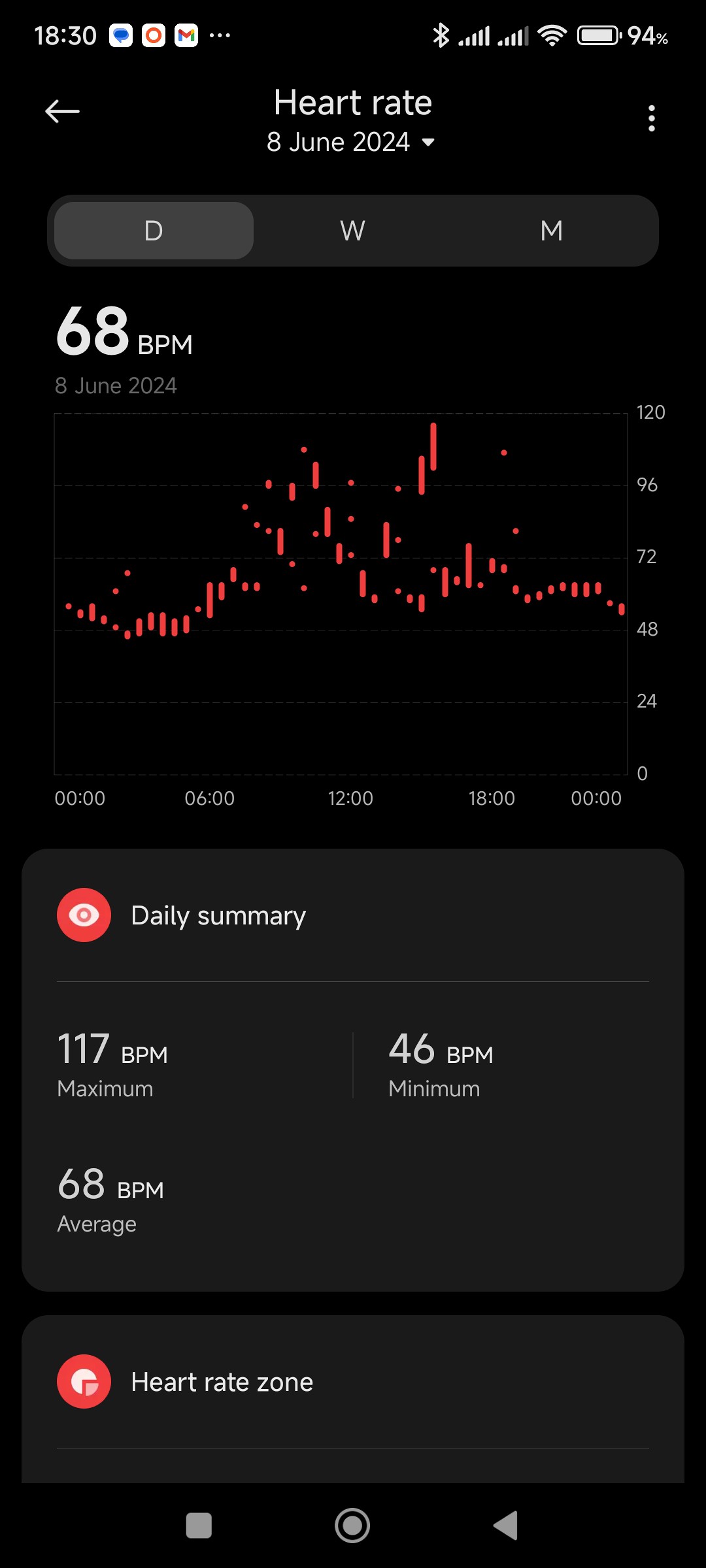
Pulse readings
The graph above shows two peaks, one in the morning while active in a mall, the second in the afternoon while doing my daily walk.
Sleep Tracker
The sleep tracker seems to work with a combination of motion sensors, pulse and SpO2 sensors. Although it does seem to measure deep sleep fairly accurately, it does sometimes give spurious light sleep readings during periods of apparent inactivity, such as reading or watching TV. These are regarded as "light sleep".
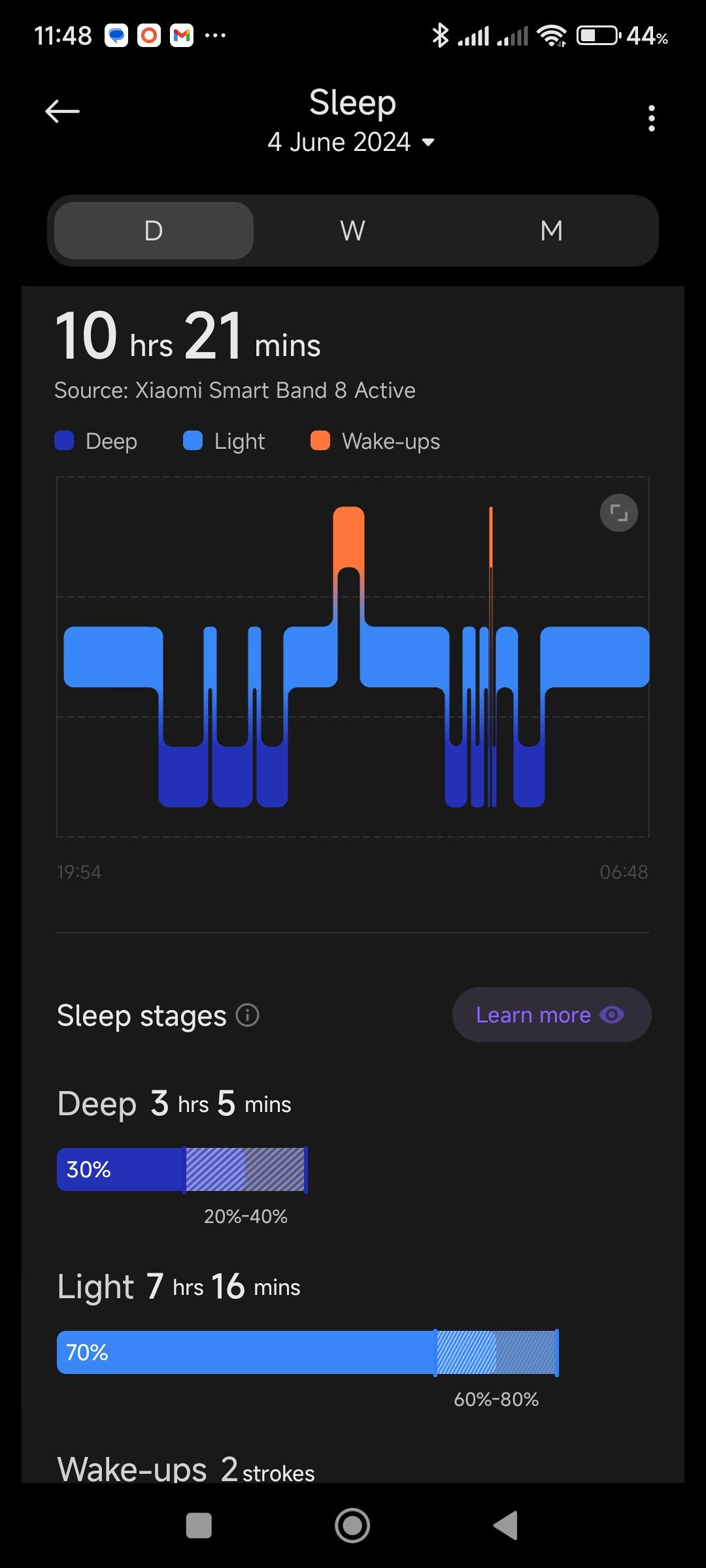
Sleep tracker
From the sleep tracker, I have found out how poorly I sleep. I did try the Advanced Sleep Monitoring (REM sleep) to see what other information I can gain.
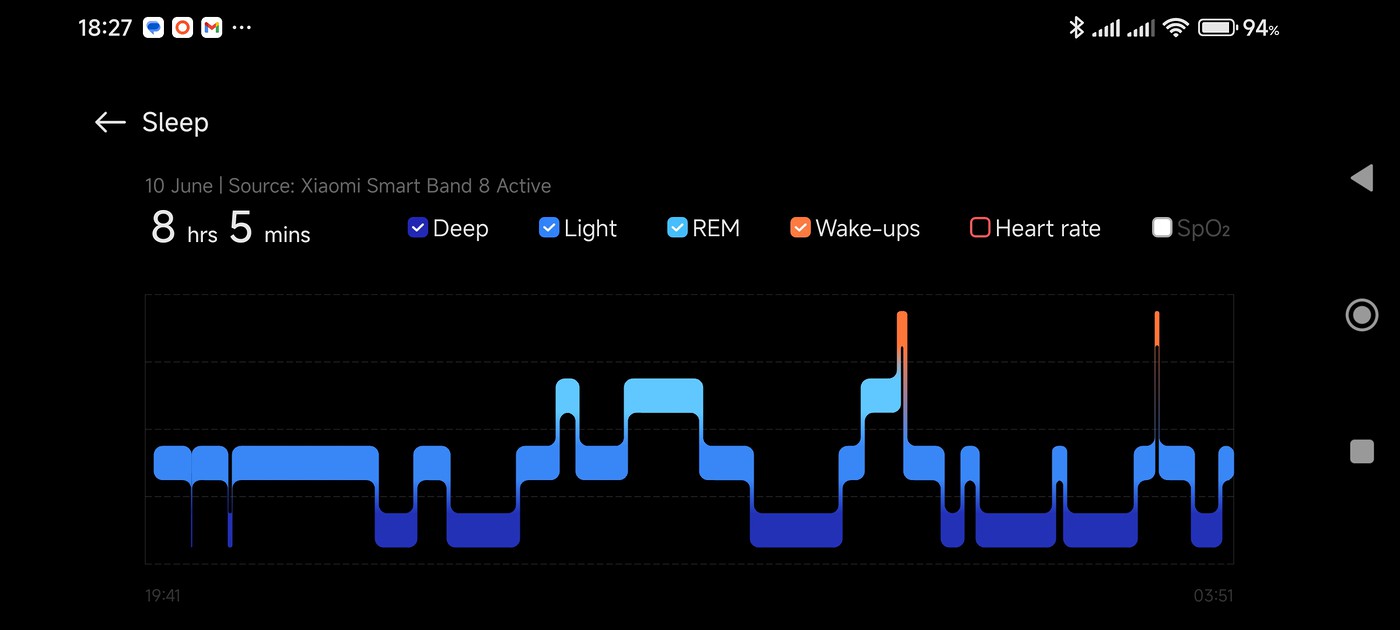
REM sleep tracking
I disabled the Advanced Sleep Tracker after about eight hours as it was very hard on the battery life - it used about 16% of the battery in this time. This is very poor when compared with less than 9% in a full day without the REM tracker. It also disabled continuous monitoring of SpO2, even though this was still shown as enabled in the app.
Most of the trackers allow you to see daily, weekly or monthly graphs. Here is a monthly graph for sleep patterns.
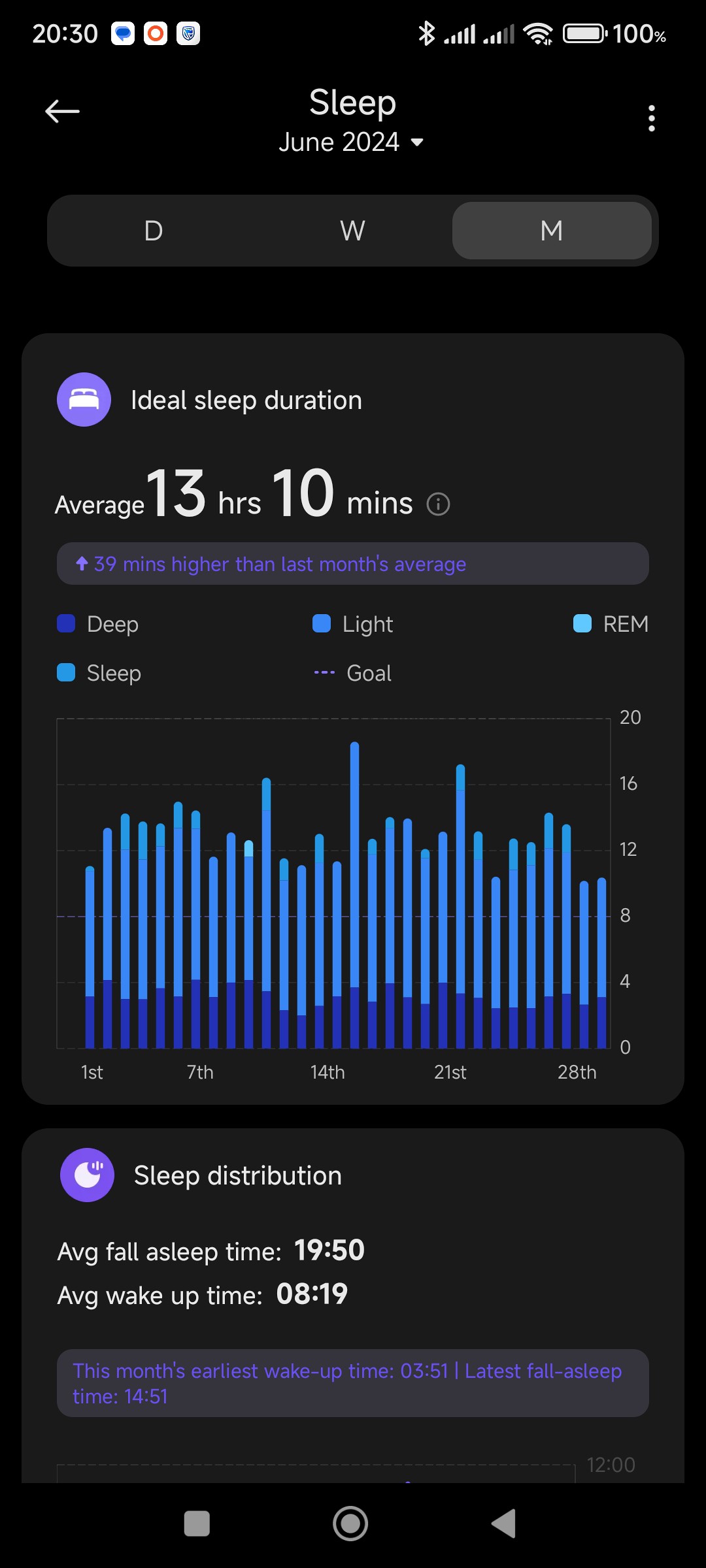
Monthly sleep graph
This graph shows that even though my periods of deep sleep are not good, they are quite consistent over a month. What the image also shows is that my average sleep time is 13 hours and 10 minutes, which is really not the case. As I mentioned earlier, this is due to the watch regarding certain quiet moments as "light sleep"!
The sleep tracking info on the watch is not very useful.
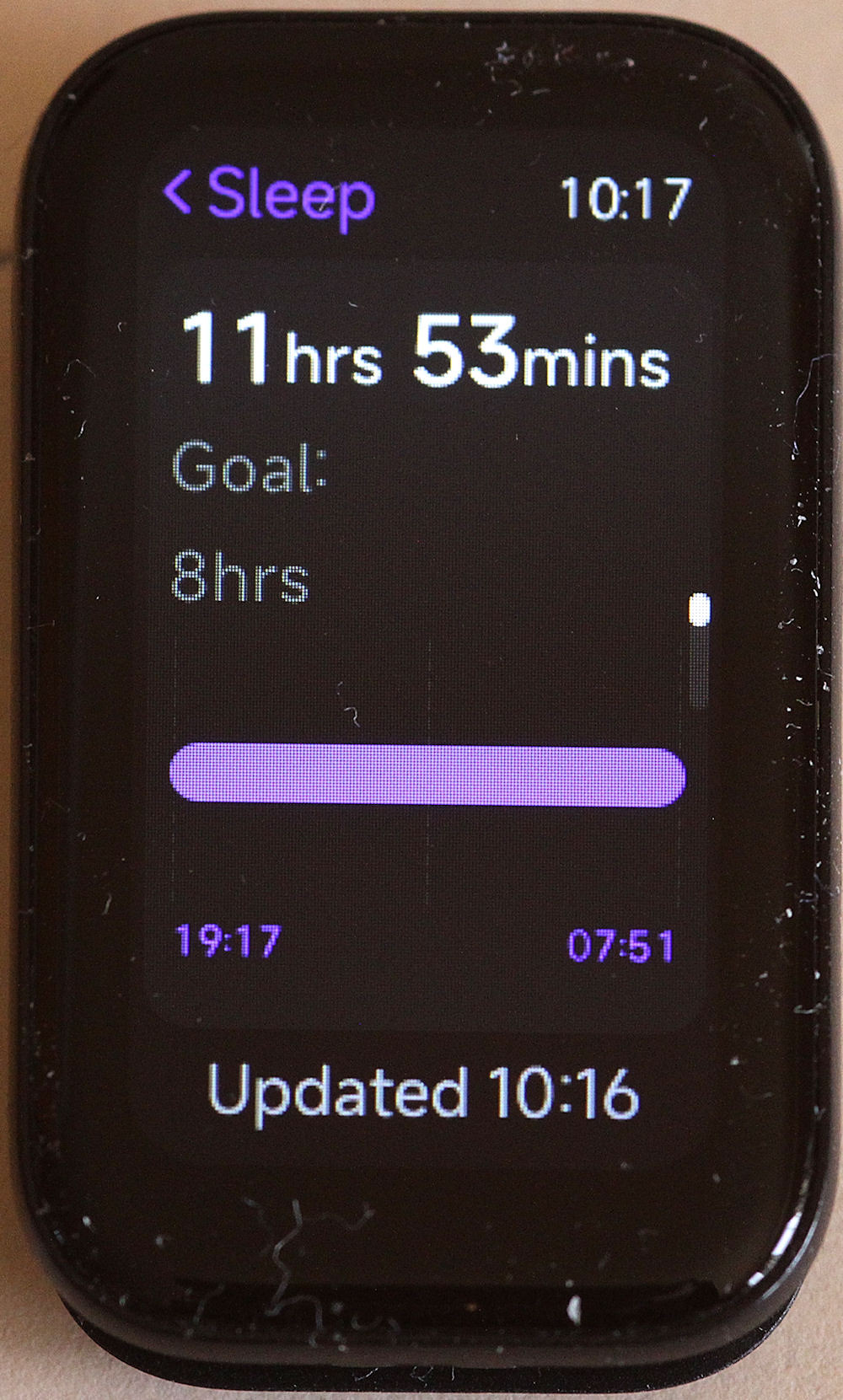
The sleep tracker screen on the watch
Pedometer
By using your height, the watch is able to calculate an average stride length (this site gives an indication as to how the calculation is done). By using the number of strides, the distance walked can be calculated.
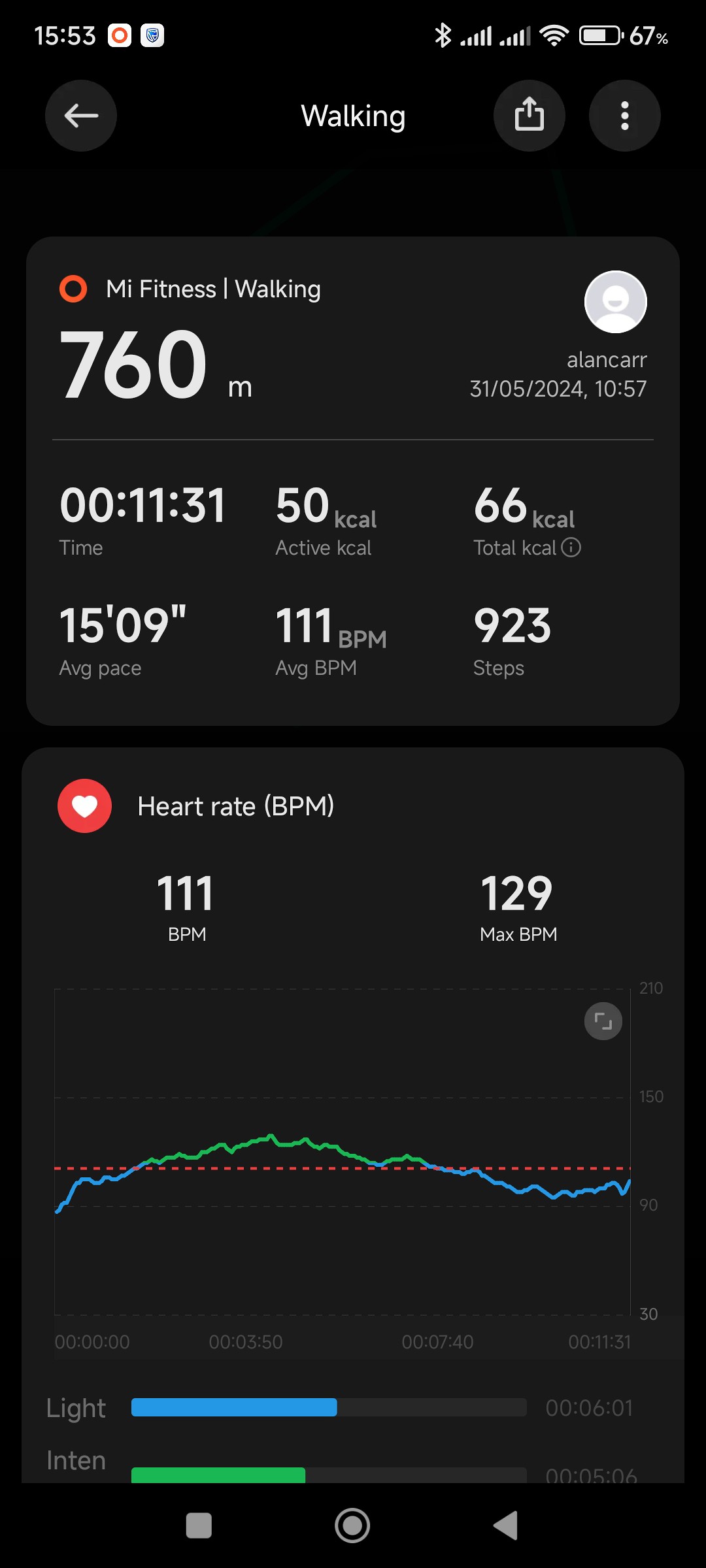
Showing the activity screen after a walk
I travelled this route in my bakkie to measure the distance, but unfortunately, the granularity of the bakkie's odometer is 100m, so the distance I measured was between 300m and 400m in one direction (ie, between 600m and 800m for the two way walk). This means the watch's calculated distance of 760m is not too bad. (I will check this distance with GPS Essentials at a later stage,)
If the paired phone is carried along on the walk, it is able to use its GPS to track the route walked. I was hoping that this GPS tracking would lead to a more accurate measure of the stride length, but this was unfortunately not the case.
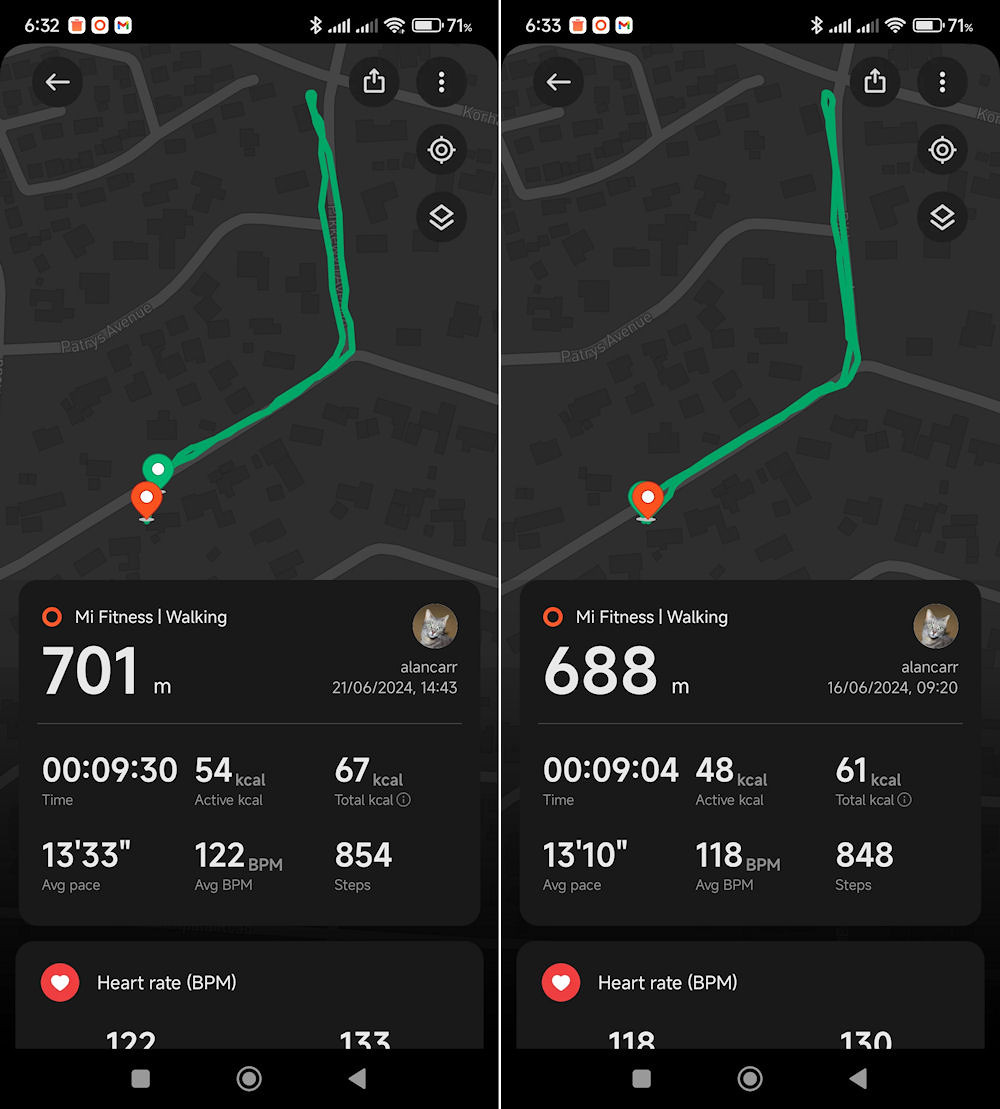
Showing the activity screens of the same walk on different days
As you can see, the distance covered is not the same, so stride tracking is used to calculate the distance, not the GPS. To show this is the case, on another walk, done four times, the distance covered varied between 887m and 950m. GPS tracking was used on all four of these walks.
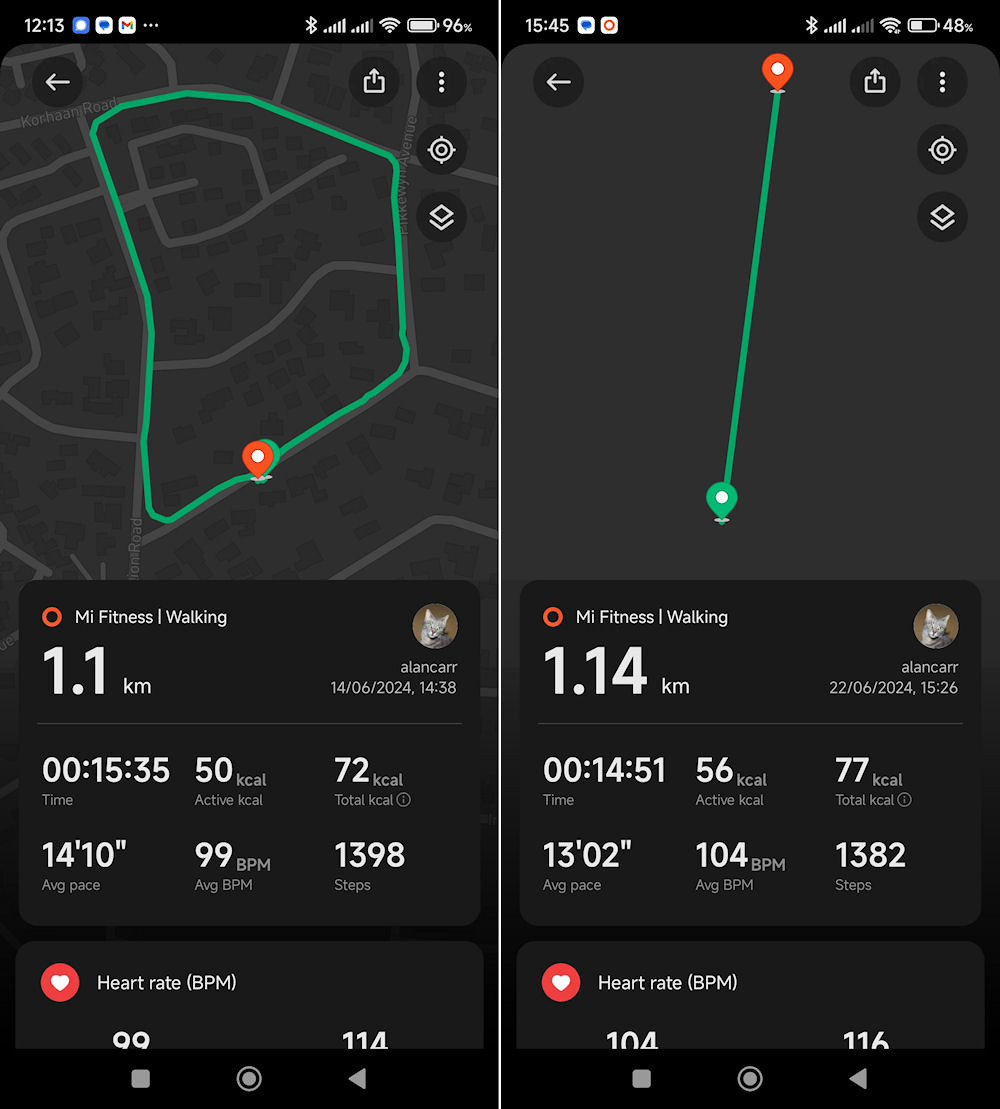
The righthand picture shows the interpretation of the route walked in the lefthand picture, without GPS
Having a map of the route walked may look nice, but it serves no real purpose. In a violent country like South Africa, I would rather not have my phone with me on a walk.
Timer
The timer is a tricky one to use - it seems to want the focus, otherwise it gets disabled. Do not try to move to another screen on the watch while the timer is running (I haven't seen what happens if a notification comes through while the timer is running). Providing that you have it activated, you can switch off the screen by covering it, otherwise the screen remains on for the duration of the timer event. Be careful not to touch the pause or stop buttons while covering the screen - the safest method is to place two fingers horizontally across the screen above the stop/pause buttons.
You are given a few preset timers, but more often than not you will want a custom timer.
A custom timer is set with Android "scroll wheels". First the hours are set by scrolling up or down then tapping on the tick. On the next screen the minutes are set by scrolling up or down on the left side (Min), then set the seconds on the right side (Sec).
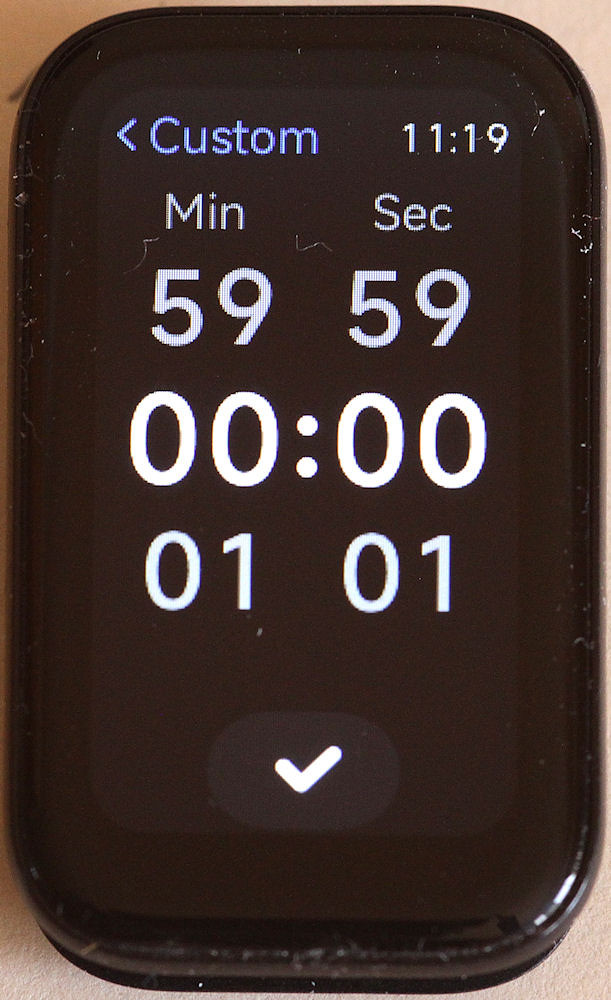
The two adjacent scroll wheels of the timer
Once the time is set, press start (the tick).
Press the stop button once the watch starts vibrating at the end of the set interval.
I would say you're better off using your phone's timer than this one.
Fitness Trackers
There are plenty fitness trackers available on the watch. The trackers are found under Workouts on the watch. Swiping up shows the menu system available on the phone, including the Workouts menu.
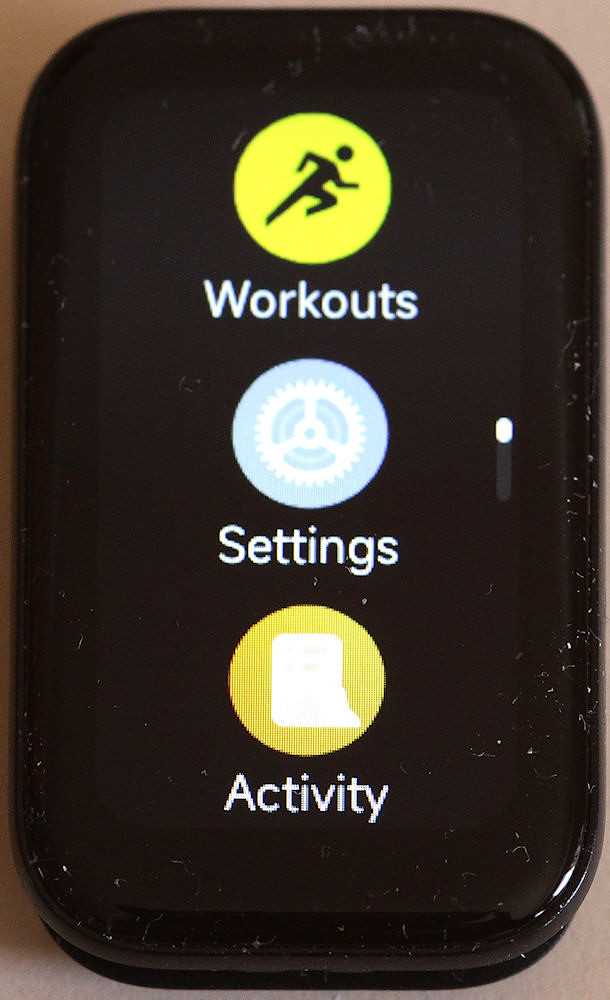
Some of the menus avaiable on the watch
I have only used three of the Workout items so cannot comment on the rest. Most of them do follow the same format - you use an Open Goal or Set your own goal. The goal is either time or distance in the trackers that I use. The tracker is enabled by tapping the Go button.
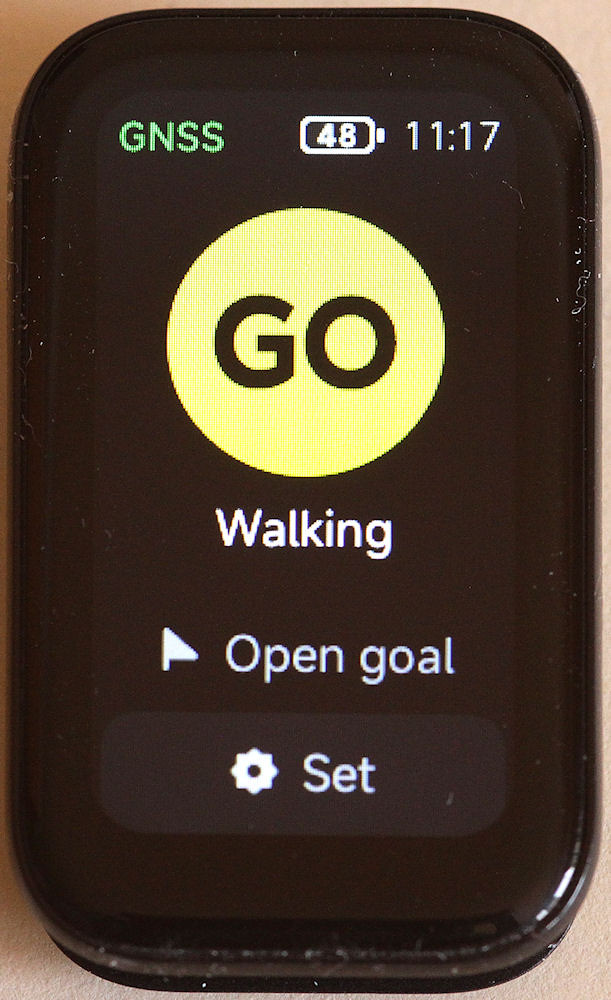
Showing the start screen of an activity (note the Open Goal and Set buttons)
Once you have completed your activity, you have to swipe to the right to access the Pause/End screen. To stop an activity, you must long press on the End button. (It took a bit of trial and error to figure this out.)
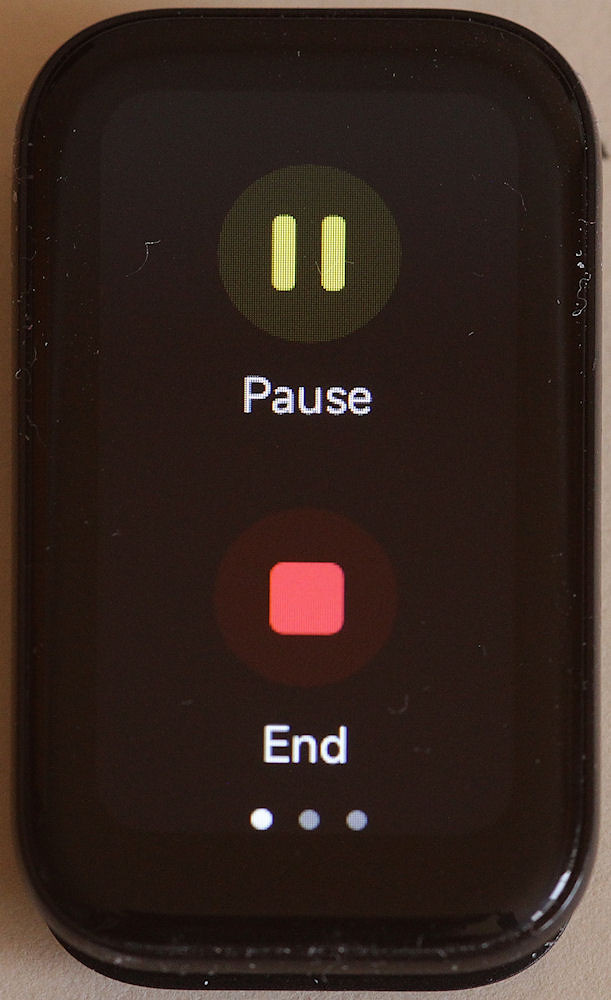
The Pause and End buttons
In the app, the trackers give you the option to see daily, weekly and monthly data. These are quite useful to see how your fitness is progressing (and of course how regularly you are exercising!). I have no idea where all this data is stored, as it can amount to an appreciable amount over time. There is an option to sync the data to the cloud, but which cloud is not mentioned.
The watch also keeps a record of activities (under the Activity menu), and about twenty activities seem to be stored.
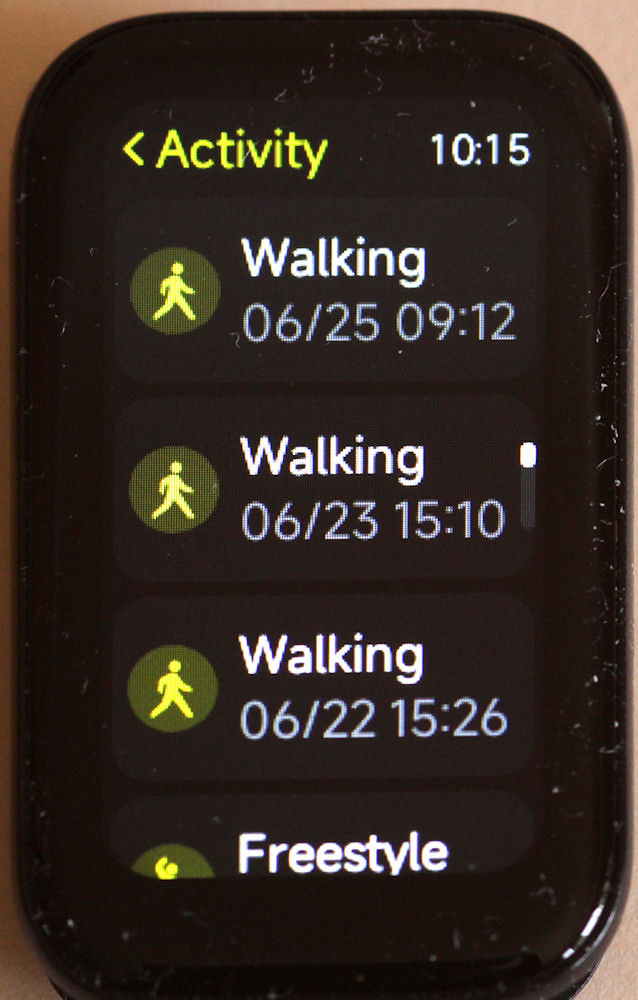
The Activity screen on the watch
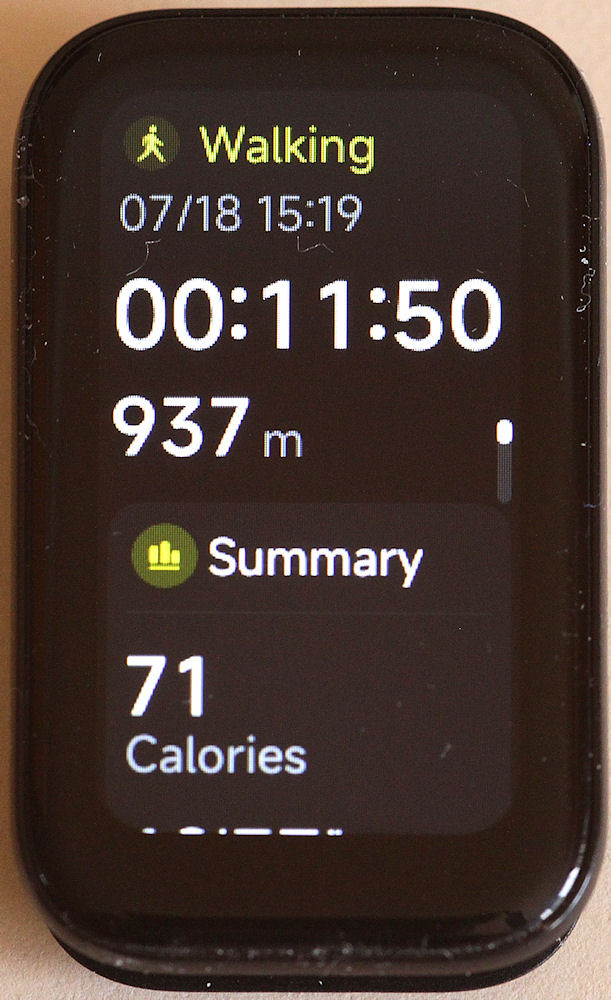
Showing part of an Activity's information on the watch
Walking This is the activity that I use most often. I discussed some aspects of this under Pedometer above.
Freestyle I use freestyle for home exercises. With these exercises, I use a time interval to make sure that I do enough repetitions of each exercise to fill my time quota. A bit of a joke on the Set menu of Freestyle is that it ranges from 6 minutes to 600 minutes. 600 minutes is 10 hours and I have no idea who exercises for 10 hours! I haven't checked on other timed activities to see whether they use the same scroll wheel.
Bowling Bowling is hidden away under More>Ball Sports. Although this tracker is for Ten-pin Bowling, I used it for Lawn Bowls as the bowling action is similar. Lawn Bowls does involve a lot of walking, which unfortunately, is not tracked directly.
Battery Life
I am pretty happy with the battery life on the watch. From my first charge (99% down to 12%) I got nine days with the way I have set up and used the watch. Subsequent charges seem to last between 10 and 12 days (my best was 14 days).
As mentioned earlier, the REM sleep tracker does eat the available battery capacity - it dropped by 16% after just over eight hours. Without the REM tracker the watch uses less than 10% per day.
With the Mi Fitness app connected to the watch for monitoring some of the watch's parameters, the phone's battery does not last quite as long as it used to. The phone used to be able to run for around 48 hours before I felt a charge was necessary - this has dropped to less than 36 hours.
Notifications
It is quite useful to have the phone send notifications to the watch. These work well for the purpose they serve. However, one app, Telegram, can get really irritating. I often get repeat notifications for some messages - in one instance, I got 12 notifications for the same message within the space of twenty minutes. This is not pleasant, especially if it happens during the night.
It would be quite nice if an emoji font could be added to the watch for the notifications.
Mi Fitness App
Because of the small screen size of the watch, you can't get much information on it. Far more detailed information can be found in the app. In the discussions above, I have shown several of these information screens.
Sync lost The link from the app to the watch is sometimes dropped (although the watch is still able to send data, such as pulse rate and blood oxygen level, to the app). The broken communication can be seen in several places such as the Devices page in the app where the watch face and the link to more faces is not shown. On the watch, a sign that sync has been lost is the weather widget asking you to pair the watch to a phone, without showing weather details.
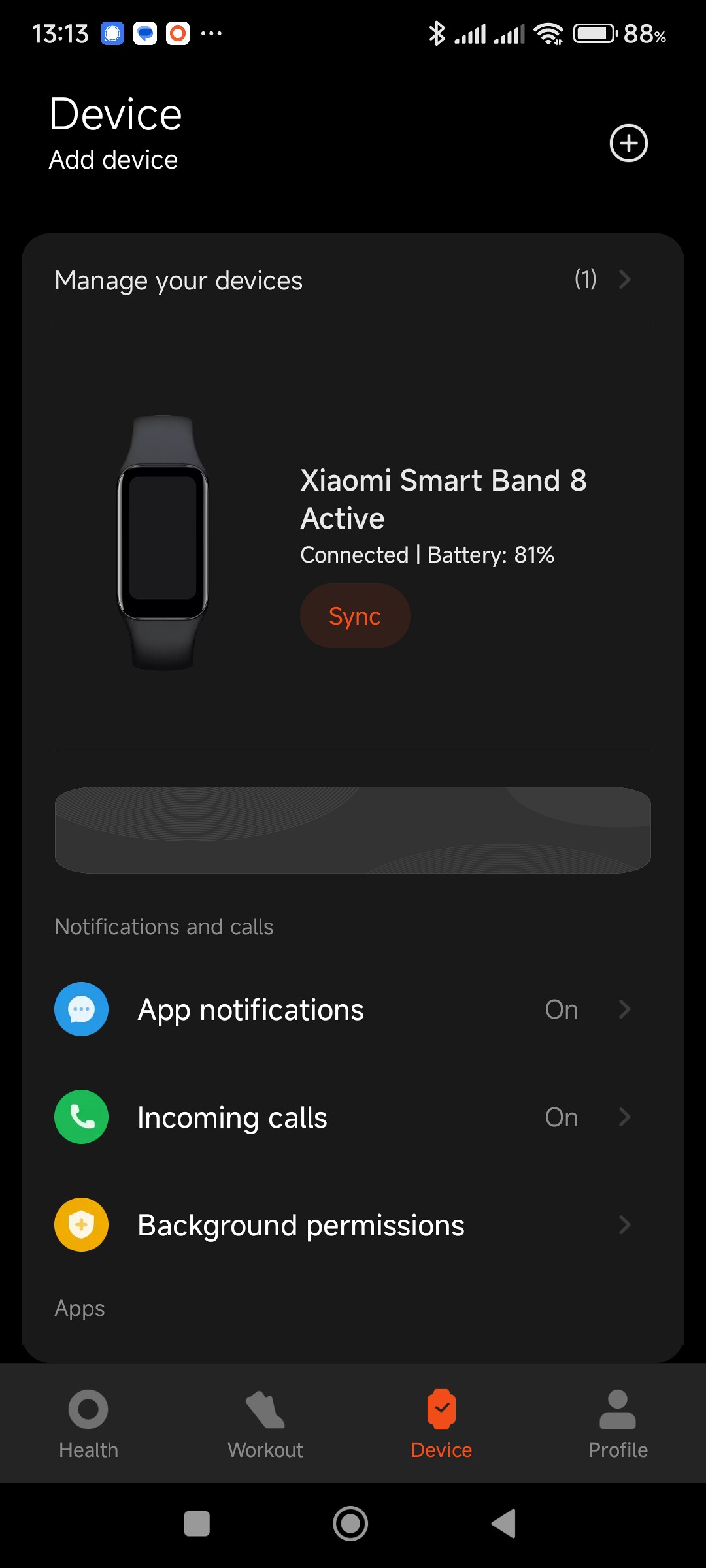
A sign that the sync has been lost - current watch face not shown
Comms can be re-established on a Xiaomi phone by running the Xiaomi Cleaner app. Rebooting the phone also re-establishes full communication, but this is a bit drastic. I need to find out what can restore these comms without a reboot. From my observations, it would appear that the cause of this problem is too many memory hogging apps open on the phone - the Fitness App, MS Excel, a browser with too many open tabs and even Telegram.
Concluding thoughts
Would I recommend this watch?
- For the price, the watch is good value for money;
- There are a few niggles with the health trackers, which maybe a problem for some, but I can live with those;
- The activity trackers that I tried do a reasonable job;
- The Mi Fitness app does have a few bugs, the worst being losing communication with the watch.
So yes, I do recommend the Xiaomi Mi Band 8 Active. However, just be aware that the trackers have their limitations. All give a reasonable indication of what they are measuring (except the SpO2 tracker, which seems to be a random number generator).
Update: 31 August 2026
I recently changed to a Samsung Galaxy A37 phone, and since making that change, the watch and the Mi Fitness app have never lost communication. This leads me to believe that the aggressive memory management used by Xiaomi in their HyperOS was the main cause of the problem.
(22 July 2024)
