Android Software
Photo Editor by dev.macgyver
A practical user guide
Creating a montage
Often, it is useful to have two images side-by-side for comparison. Over the years, I have found it easier to create a single new image containing the ones I am documenting than to create an HTML container for the two images. Here, I expand on the Fit method I used to enlarge the canvas when creating the Readera logo.
In this exercise, I will be using two images showing the efficiency of a cheap security light.
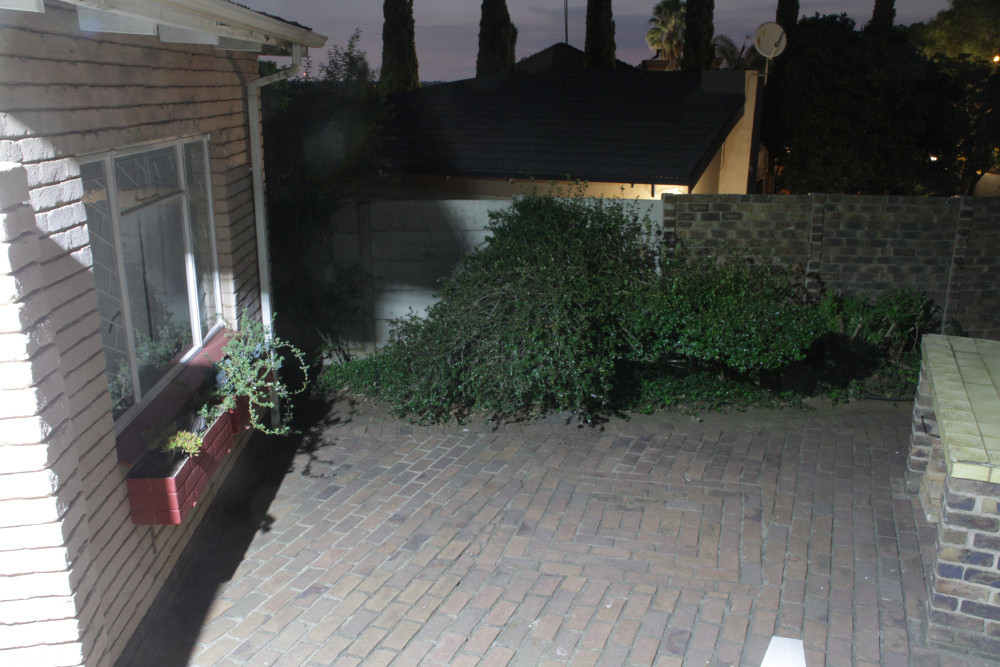
Image 1
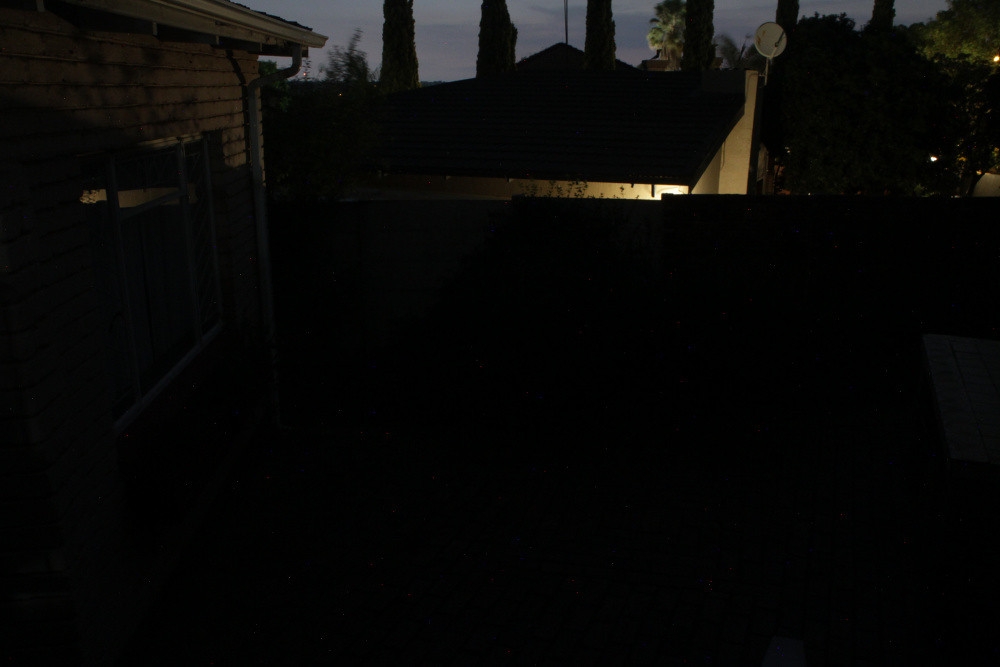
Image 2
First, we need to load Image 1 into the Editor and expand the canvas. As the images are the same size, at 1000×667 pixels, the width of the canvas should be 2000 pixels. However, I like to have a small border between the pictures, so I have set the width to 2003 pixels. Also, so that this border is visible, I have changed the background colour to white.
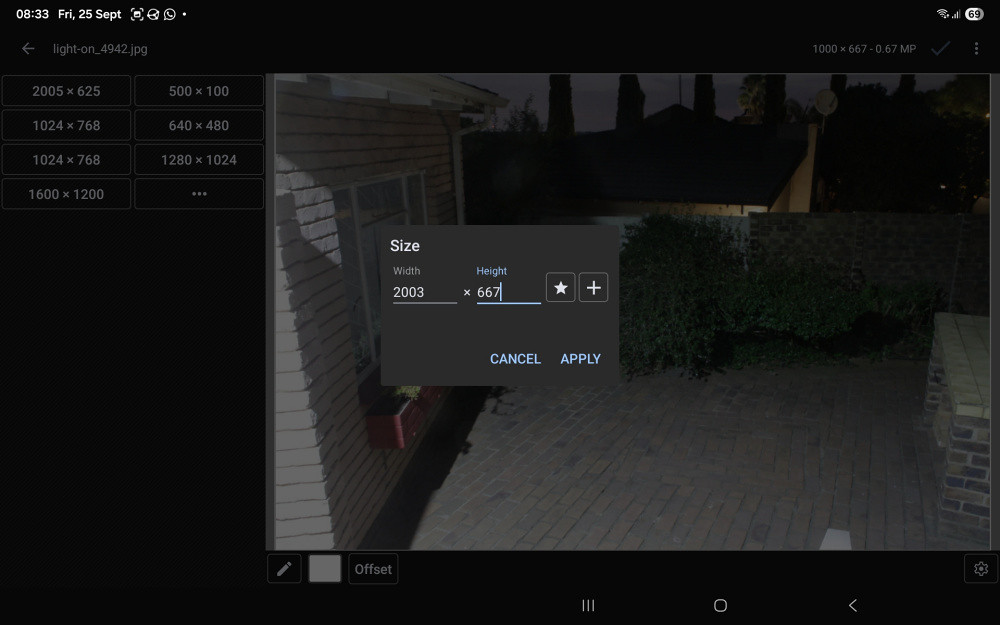
Setting up the canvas
With the canvas set up, we now need to add the second image. This is a fairly round-about process. First tap on the menu item Text/Image.
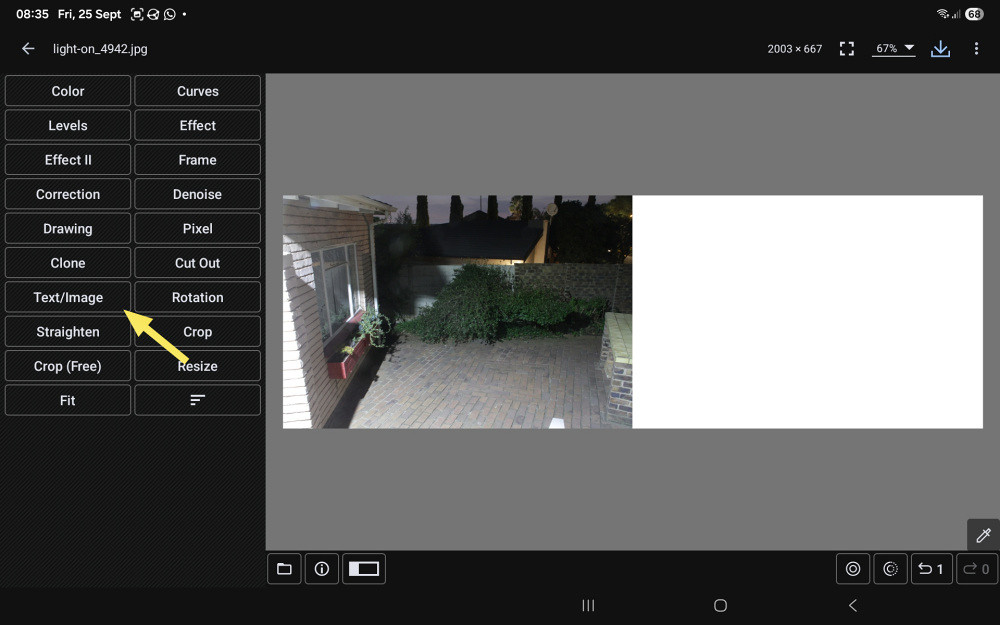
Select Text/Image from the menu
Now from the secondary menu, select the icon that looks like a small mountain scene.
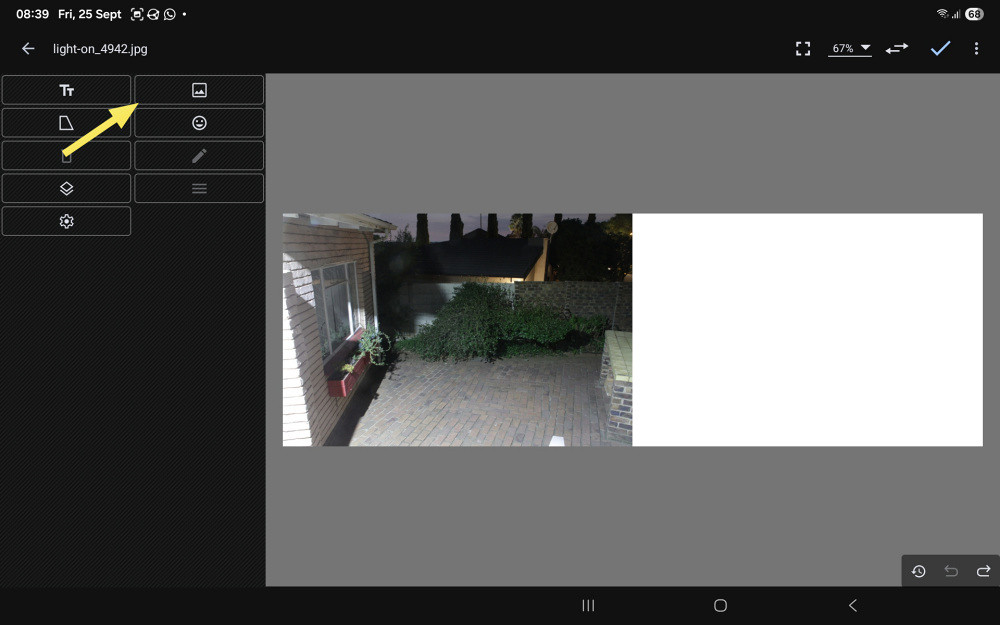
Select the icon shown
From this third screen, select the icon showing the mountain scene again.
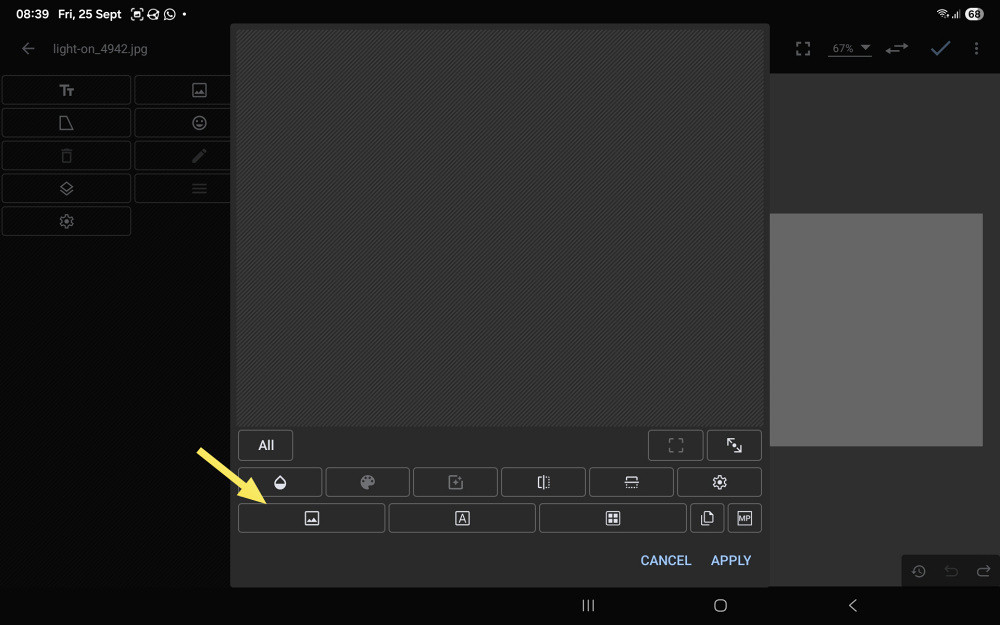
Select the icon shown
You finally reach the file manager, where you can select the second image. The image is loaded into the window, where it can be scaled before being added to the canvas.
Note that when the image is added to the canvas, it is smaller than the height of the canvas and is centred.
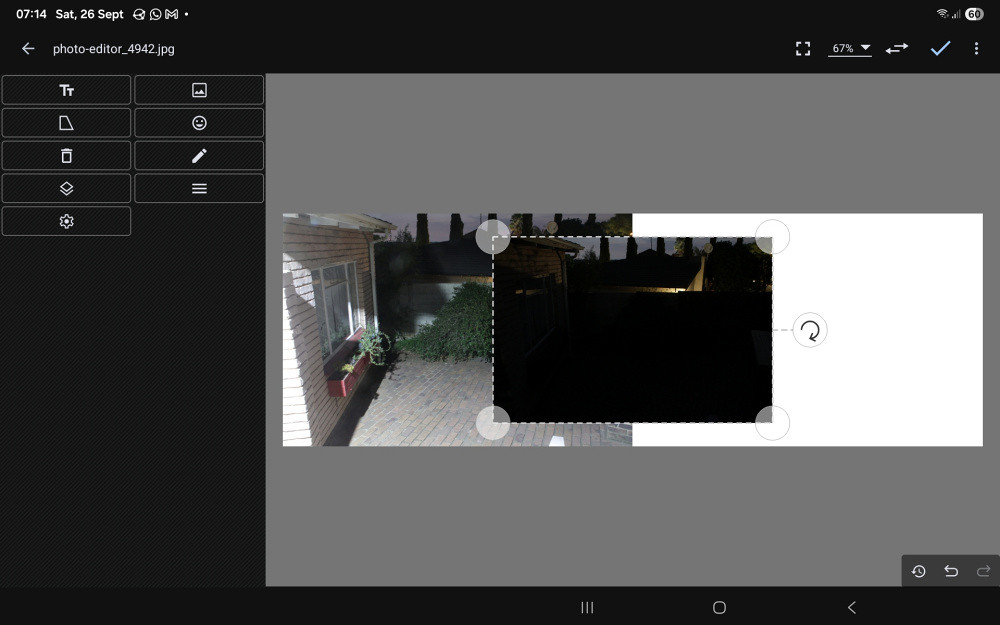
The second image on the canvas
We now need to move the image to the right-hand side of the canvas. Before doing this, zoom in on the canvas using the two-finger zoom method. This will help with accurate placement of the image. Now drag the image so that its top right-hand corner coincides with the top right-hand corner of the canvas.
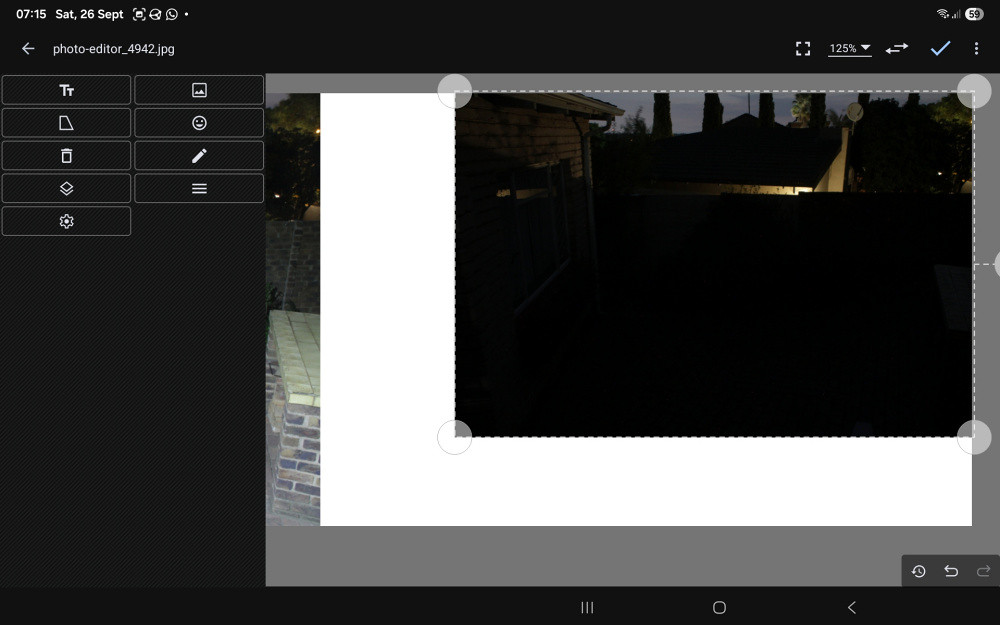
Moving the image to the top righthand corner of the canvas
Tapping outside the image will remove the drag handles so that you can see how well you have aligned the image. Tapping on the image brings them back.
Now hold the bottom left drag handle and pull it diagonally down and left until the bottom of the image coincides with the bottom of the canvas.
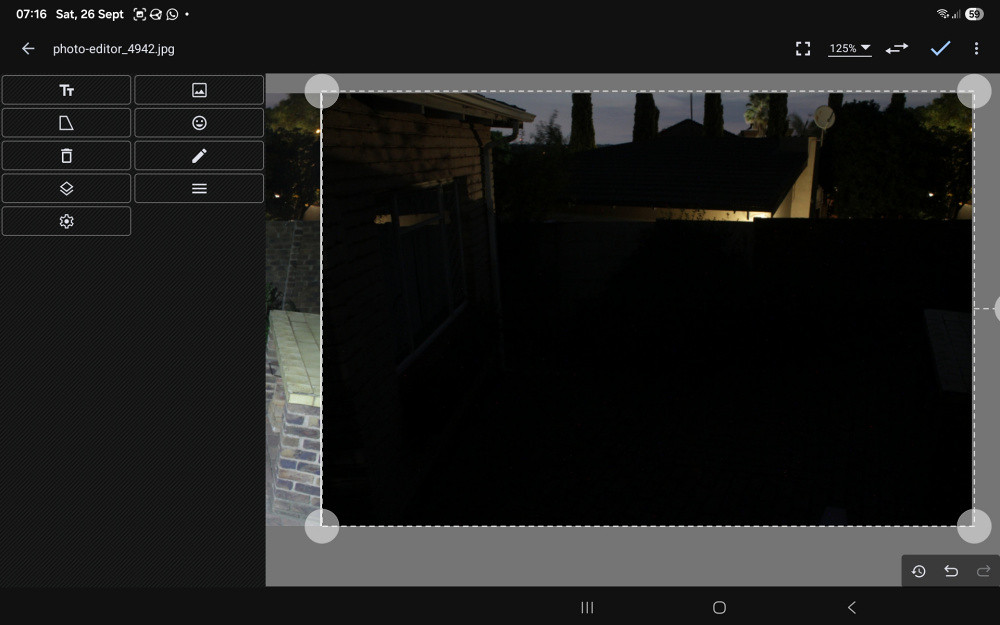
Correcting the dimensions of the image
And finally, our finished image.
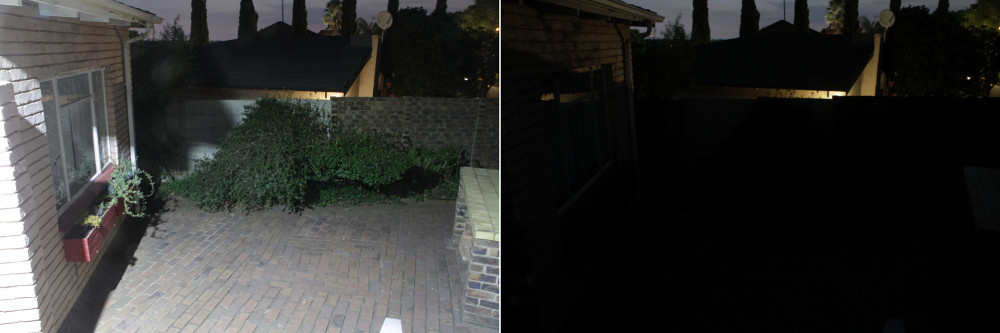
The final image
(26 September 2026)
Return to Photo Editor
