Android Software
Working with Google Sheets
Brought to you by Google — We know what's best for you™
I have tried Sheets hoping that it could be a viable alternative to Excel. In practice, I have found that it often requires some effort to achieve the intended outcome, and that the path to doing so is not always obvious.
For the purpose of this exercise, I uploaded a copy of a working spreadsheet to Google Drive.
Dates, decimal separators and locales
An issue encountered early on was date handling. The spreadsheet contained dates in the format dd/mm/yyyy, which were converted to mm/dd/yyyy. The date format for the ZA locale is actually yyyy/mm/dd; however, dates entered in this format are also converted to mm/dd/yyyy when the spreadsheet is reopened.
Setting a column format to yyyy/mm/dd will retain this format.
The decimal separator for the ZA locale is a comma. A number entered as 33,6 is treated as text rather than a numeric value.
In short, Sheets ignores the locale settings and treats both numeric and date formats as if the locale were US-based.
Using the date picker To reliably access the date picker on mobile, first ensure the column is formatted as Date. Then tap a blank cell in that column and tap the input box that appears. This makes the calendar control available, allowing the date picker to be opened and a date selected without manually entry. Existing date cells behave the same way — tap the cell, then the calendar icon to adjust the date.
Neither the date picker, nor the number keyboard, are available on an Android device with a Bluetooth keyboard attached.
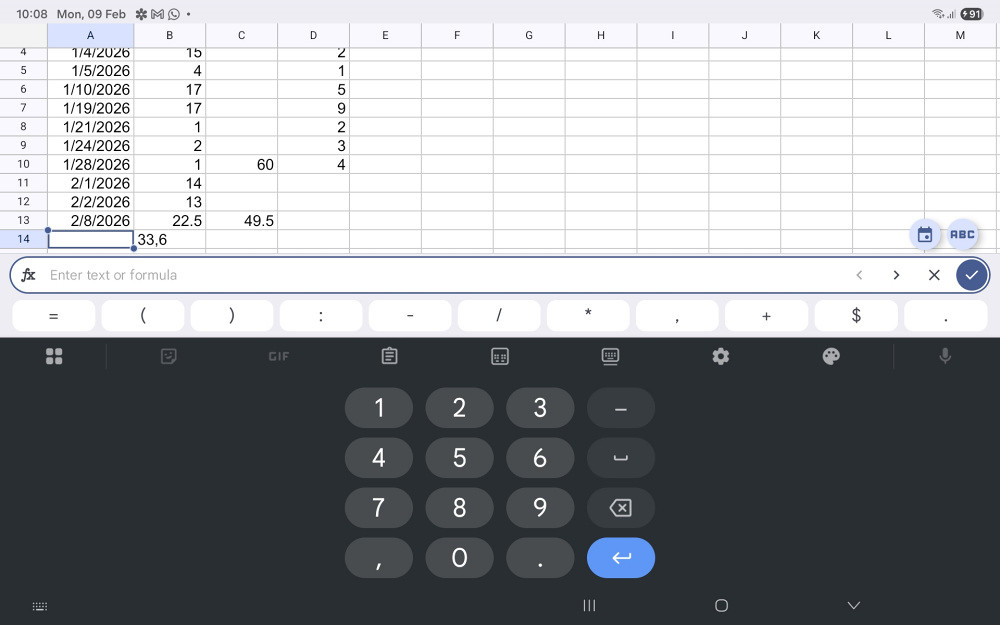
Fig 1. A sheet with date input active
The pic above shows the following:
- The date picker and text keyboard icons on the right above the input bar
- Dates are in US format (m/d/yyyy)
- A number in cell B14 entered as 33,6 is left justified, indicating text
- A row of useful operators between the keyboard and the input bar.
(updated: 9 February 2026)
Graphs
The graphs displayed are broadly similar to those shown by other spreadsheet applications. On a mobile device, however, these graphs cannot be modified within Sheets.
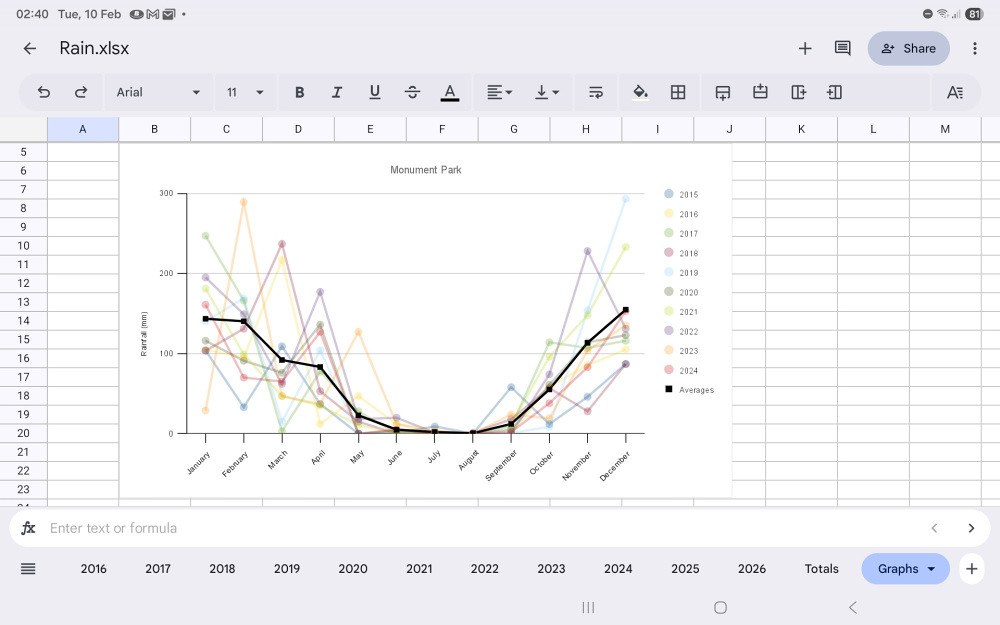
Fig 2. A graph of the data
(updated: 9 February 2026)
Autofill and copying values
Using drag handles to autofill a function works as expected. Copying and pasting calculated values over a range of cells also behaves as expected.
In Fig 1, the number of days between rain measurements (column D) and the February rainfall total (cell C13) were calculated using drag handles.
Sheets has a very disconcerting "feature": if you tap a cell containing a formula and then tap another cell, the last cell reference in the formula is replaced by the cell just selected. To prevent this, tap the input bar immediately after selecting the formula cell.
(updated: 31 March 2026)
Linking cells across sheets
Existing cells with links across sheets behave as expected. However, when attempting to copy a cell from one sheet to another, the Paste special menu offers a wide range of options — except paste as a link.
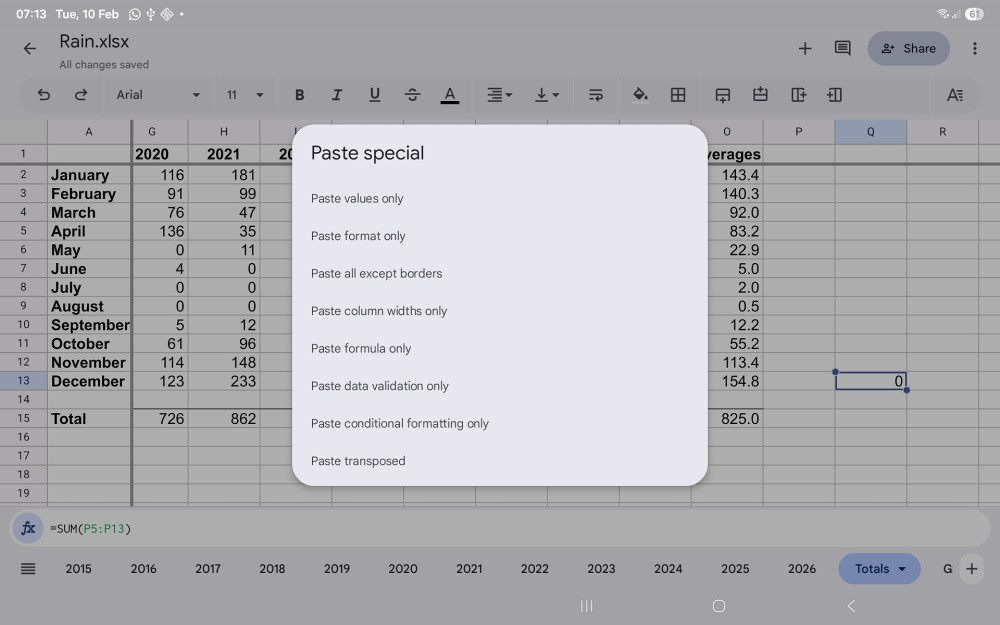
The Paste special options
(updated: 10 February 2026)
Formatting toolbar
While entering data, the formatting toolbar is not immediately visible. To access it, the tick icon on the right of the input box must be tapped, after which the formatting toolbar becomes available (see Fig 1).
The formatting toolbar can be seen above the sheet in Fig 2.
(updated: 9 February 2026)
Formatting a column
To format an entire column, tap the column letter at the top of the sheet. The required formatting options can then be selected.

Formatting options
However, the control for the setting for the number of places after the decimal separator is greyed out when a whole column is selected. As a result, the number of decimal places cannot be changed for an entire column in a single operation.
(updated: 6 July 2026)
Local files
Sheets requires that a spreadsheet be accessed through Google Drive, meaning that a file must first be uploaded before it can be edited. Do not try to edit a local file.
When saving or uploading files, duplicate file names are not handled in the same way as desktop spreadsheet software. If a file with the same name already exists, no prompt is shown to rename or overwrite the existing file, and multiple files with identical names can be created in the same location. Google Drive must have some internal method of distinguishing the files, but this is not made apparent to the user.
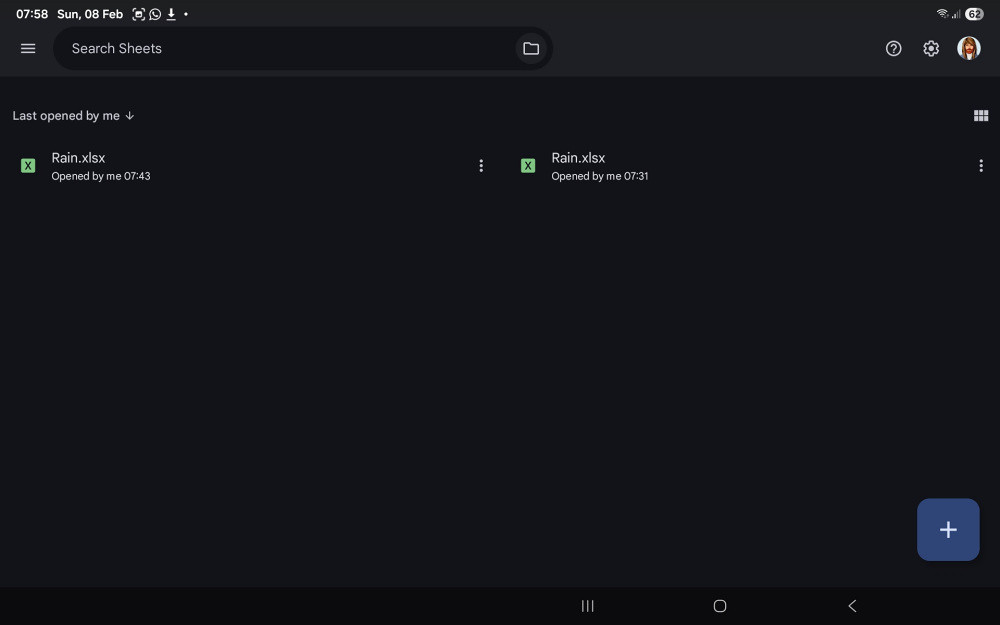
Files with identical names in the same folder
(updated: 10 February 2026)
Concluding remarks
Google Sheets presents itself as a capable alternative to Excel, particularly on mobile devices. In practice, some care is required around locale handling, with dates being silently reinterpreted.
Cloud synchronisation and sharing works reliably across devices, with changes are reflected as expected. Based on previous experience, I remain cautious about relying on cloud-based storage for data gathered over a long period.
Some of the behaviours described above can be contrasted with the same spreadsheet opened in Excel, which is discussed separately.
(updated: 9 February 2026)
