Linux Operating System
Samsung NC10
Introduction
I bought a netbook computer in 2009 to use for PowerPoint presentations in the classroom. With the purchase, I had the RAM upgraded to 2GB and had the extended life battery installed. The first thing I did when I got the device was to dump Windows XP and install Kubuntu (in those days, Kubuntu ran like a dream on the Atom processor). I also forced my students to use it for their own presentations to show them that minimalism is always better. Those fancy fonts that they were wont to use did not work with Impress (which is Open Office's equivalent of PowerPoint) as the fonts were not installed on the NC10.
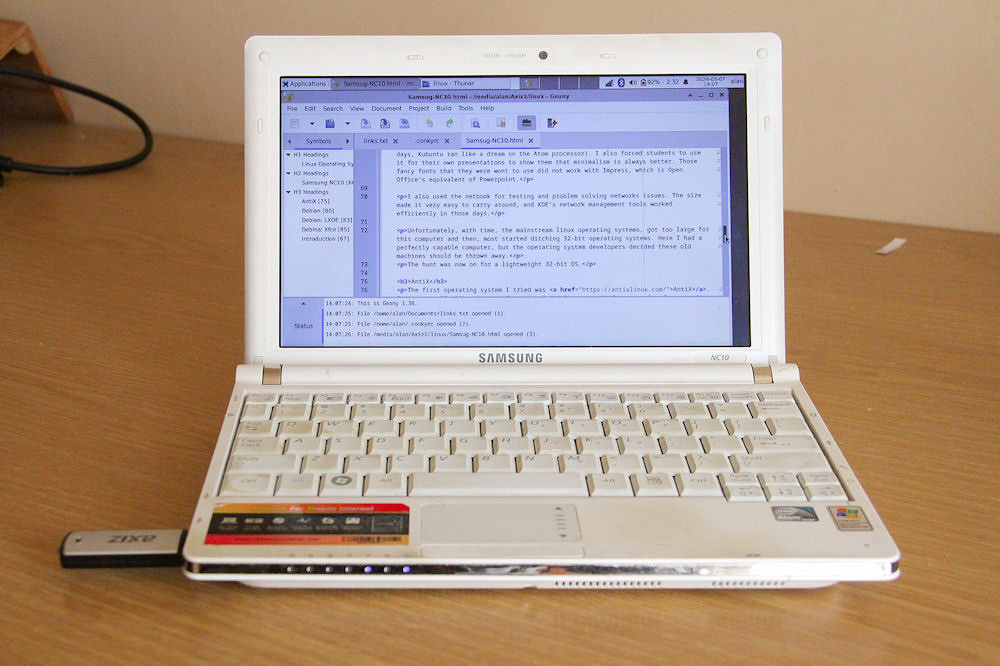
My Samsung NC10 using Geany to edit this file
I also used the netbook for testing and troubleshooting networks issues. The size made it very easy to carry around, and KDE's network management tools worked efficiently in those days.
Unfortunately, with time, the mainstream Linux operating systems, got too large for this computer and then, most started ditching 32-bit operating systems. Here I had a perfectly usable computer, but the operating system developers decided these old machines should be thrown away.
As I still use the NC10 for editing web pages, the hunt was now on for a lightweight 32-bit OS.
AntiX
The first operating system I tried was AntiX. I didn't really like the interface, but did live with it for a few years. One thing I did enjoy playing around with was Conky. As this was built into the system, it ran smoothly and was really easy to modify. I have not had much luck using Conky on Ubuntu based operating systems.
Where AntiX fell apart for me was when I started battling to find 32-bit repositories. I gave up on AntiX when the only repository I could access was in Brazil and that was extremely slow and the packages available were very limited. So I had to start looking for another OS vendor.
It's FOSS has an article on 32-bit Linux operating systems. Right at the top of their list was Debian, so I decided to look at Debian as Ubuntu is a Debian derivative, and I am familiar with the way Ubuntu works.
Debian
When I started looking at Debian during lockdown, v11 (Bullseye) was released. Having plenty of time on my hands, I could try all the options.
The Debian installation script is easy enough to use (it does however, take a rather long time to get going). It offers an array of frontends that can be used (Gnome, KDE, Xfce, LXDE, LXQt among others). I did have a look at KDE, but the system overheads made it almost impossible to use with the NC10's atom processor and limited RAM, so I looked at LXDE, as it is extremely light on resources.
One thing to be aware of is that the Debian desktop environment AND Gnome are pre-selected to be installed by default. You need to deselect these and only install the frontend that you wish to try out to minimise system overheads. (All of the following pictures are from Debian 12. The install script is the same as that of Debian 11.)
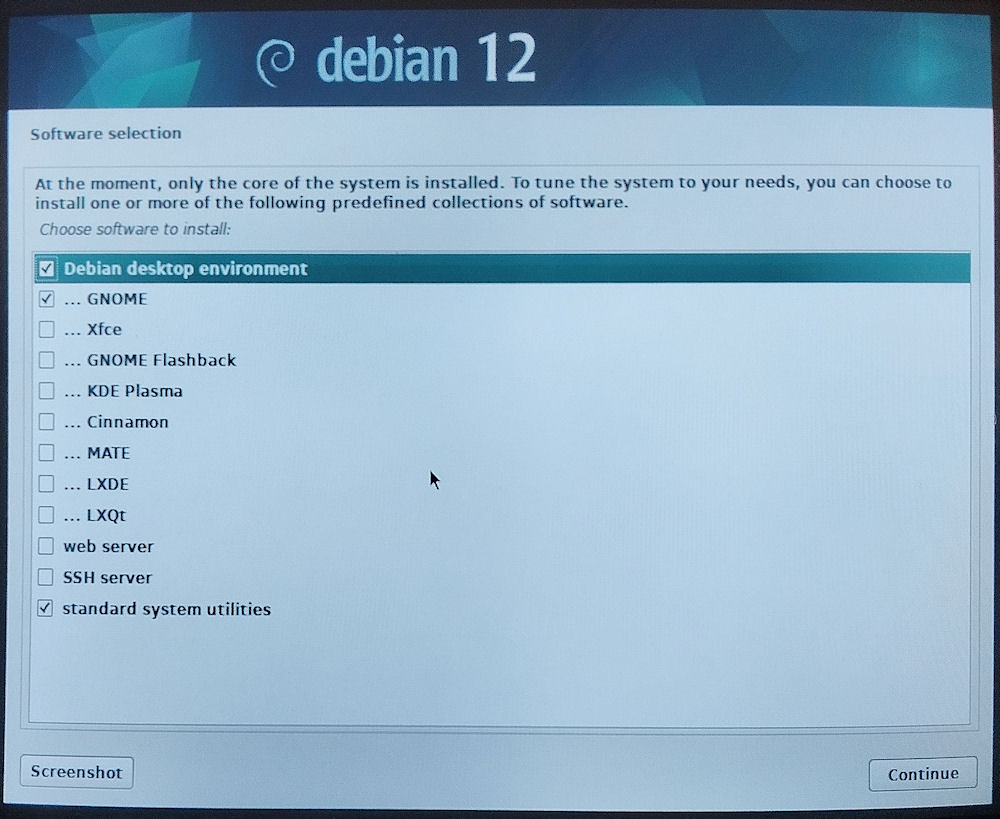
Pre-selected frontends
Here, selecting Xfce to be installed.
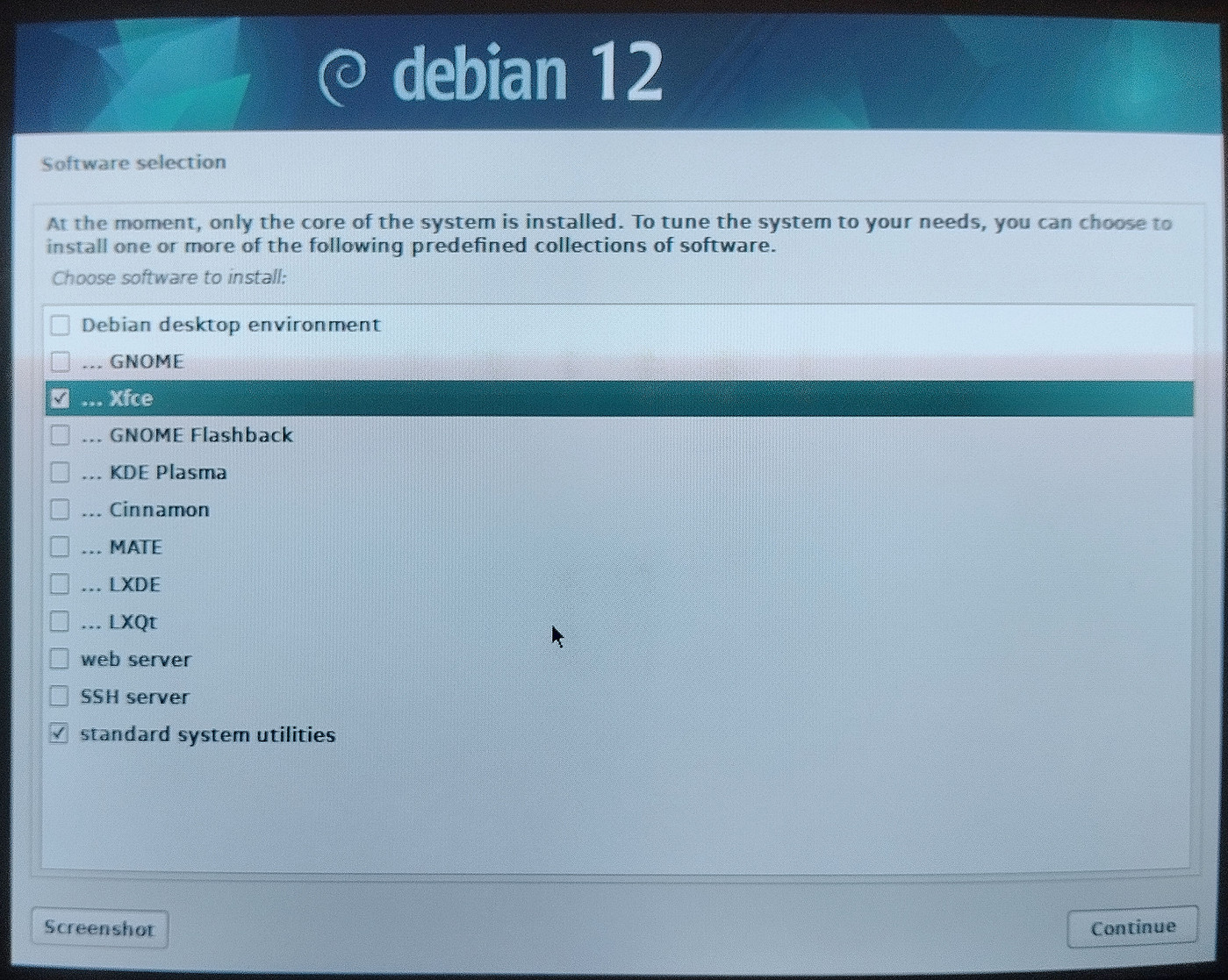
Selecting Xfce as a frontend
During the install, you are asked to create a root password. Adding this password causes a bit of an irritation when trying to use sudo. I always skip this page by clicking on Continue without entering anything in the fields.
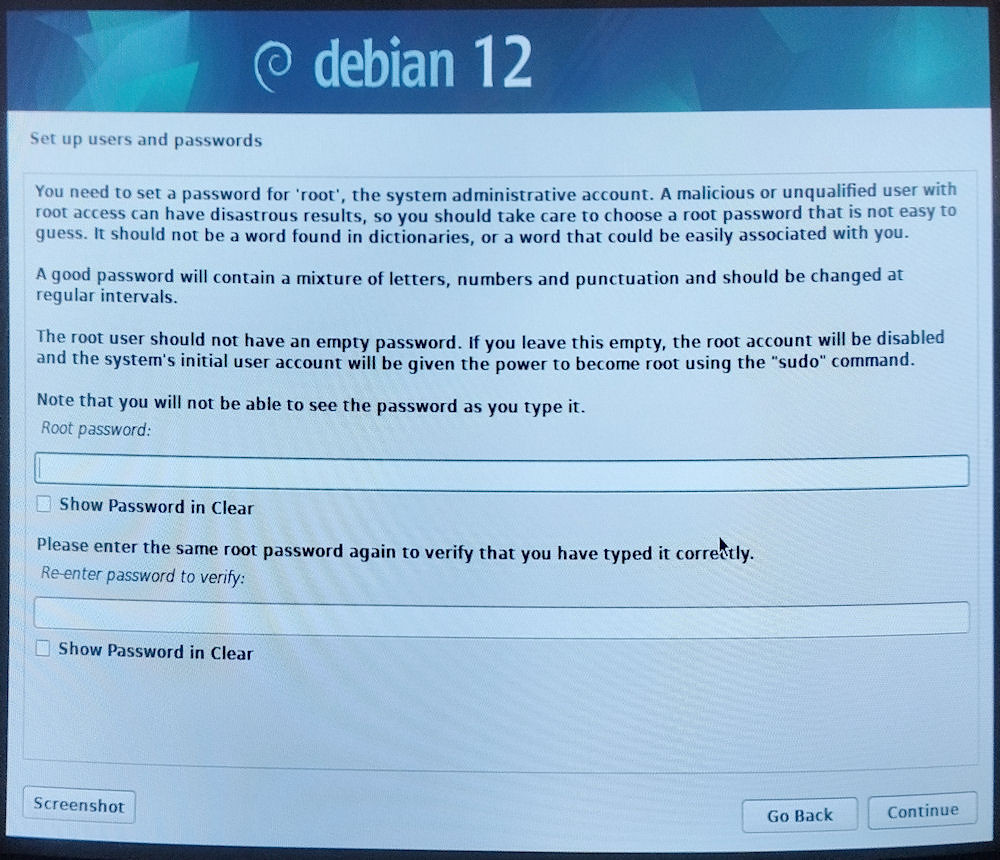
Debian's root password page
Just be aware that there is a bug in the install script. The CD-rom repository does not get disabled in the /etc/apt/sources.list at the end of the install process. You need to do this the first time that you use the Synaptic Package Manager (Settings>Repositories then uncheck the CD-rom entry).
Debian: LXDE
LXDE is extremely light on resources. The only time it takes some strain is when Firefox has three or more tabs open. Plenty of RAM swapping to the hard disk swap partition takes place. Replacing the hard disk with an SSD may help with speed, but I am not sure whether the NC10 is worth the capital outlay.
Screen brightness buttons After having used LXDE for a while, I started looking for things that were missing from the LXDE install. One thing that I really wanted was to be able to use was the NC10's screen brightness buttons. During the boot process the screen brightness drivers do get loaded, so it was a case of linking these drivers to the buttons. I found a workaround was to install the xfce4 power manager. This worked like a charm, but it did install a whole host of xfce utilities, including the Thunar file manager.
ConnMan The biggest irritation with LXDE was the connection manager (ConnMan). Once the network was set up, the ConnMan UI would show no connections, which made it useless for network troubleshooting. Francois found with his Dell Inspiron Mini 10 Netbook that he could install Debian based LXDE via WiFi, but as soon as he booted into the OS for the first time, he could not access the network. He did not have this problem with other lightweight OSes like Lubuntu 18.04 and Windows Tiny10.
I found that I could not access the network if I plugged in the dongle for my wireless mouse before the login screen appeared. There was some conflict between the dongle and the driver for the WiFi chip. The only way to get around this was to remove the dongle and reboot the NC10.
Where the system really broke for me was when I needed to transfer a file from my phone to the NC10. I wanted to use Bluetooth, but here again, ConnMan showed no Bluetooth connections (even though the Bluetooth drivers get installed during the boot process). I installed BlueMan from the Debian repositories in order to access the Bluetooth subsystem of the NC10. Once I activated this, I could transfer the files from my phone and I got an applet icon in the panel which allowed me to change Bluetooth settings. On the first reboot after installing BlueMan, I lost my WiFi connection and ConnMan gave me no way to get it back. I was now in the same situation as Francois with his Dell Inspiron. Fortunately, the ethernet connection still worked so I could install Network Manager.
Network Manager gives you access to the command line utility nmcli. The parameters available for nmcli allow you to access everything necessary for setting up a network. A simple guide from the Make Use Of site got my WiFi connection up and running using nmcli without too much effort. An added advantage of Network Manager was being able to install the nm-tray panel applet which gave me a gui interface to setting up a network from the LXDE panel.
At this stage, ConnMan was a real con to me, so I uninstalled it (unfortunately, without taking any screenshots).
I was now starting to think whether I should move away from LXDE as from my reading throughout these exercises, people were complaining about a lack of development on LXDE.
Debian 12
During my time with LXDE, the devs at Debian upgraded their stable OS release to Debian 12 Bookworm. Where most other vendors had dumped 32-bit operating systems, Debian had produced a new one with a v6.1 kernel!
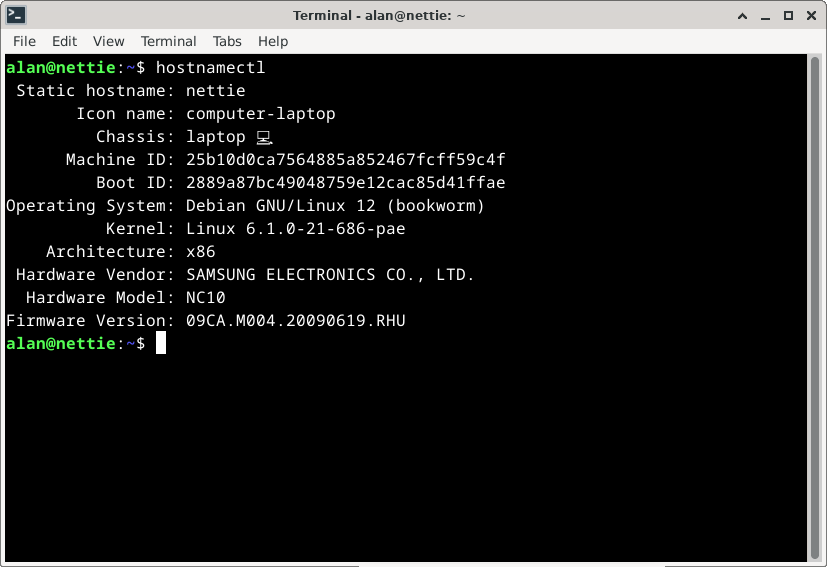
hostnamectl showing the system info
After I decided that I had now installed so many other bits and pieces to make LXDE work, it was time to move on. Xfce was my next port of call.
Debian: Xfce
Initial impressions The UI took a bit of getting used to as the panel is at the top.
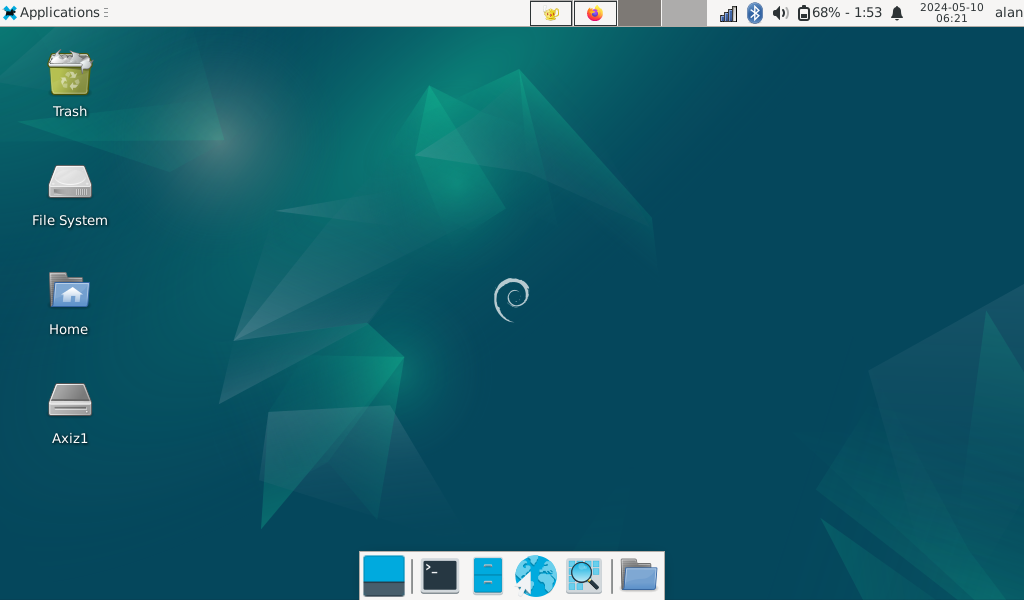
The panels of Xfce
The Applications on the left of the panel is a dropdown menu for available programs. On the right of the panel are the panel applets. To the left of these are four available desktops (Four might be pushing it a bit with the 2GB of RAM available on the NC10). The space between the desktop icons and the Applications menu is for the running applications on the active desktop. The small app icons on the desktop indicators in the pic above show which apps have the focus on that desktop. Geany is the active app on desktop one and Firefox the active app on desktop two. I used desktop three to take the screenshot as there were no acitve apps.
There is a small autohide panel at the bottom for often used applications.
To access the settings of the two panels, right-click on one of them.
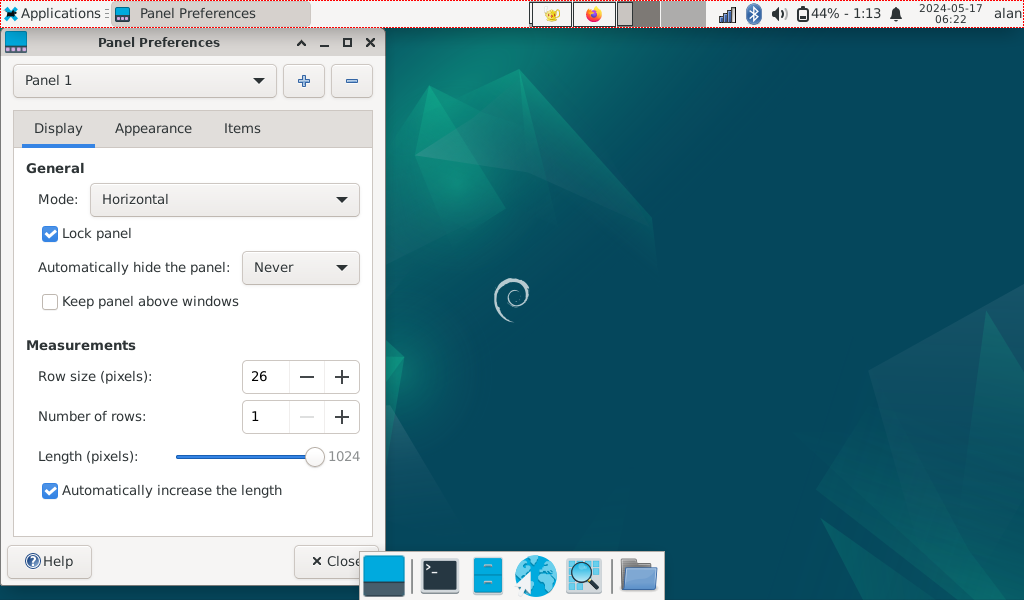
The panel settings
I am not going into too much detail, but just a couple of points to note. At the top of the dialog is a panel dropdown - here you can switch between the top and bottom panels. On the tabbed menu, the Items option allows you to change what you would like to see. Double clicking on an entry gives options for that entry.
Network Manager is preinstalled with an nm-applet, which includes Bluetooth. I think this is the way Connman was supposed to work on LXDE.
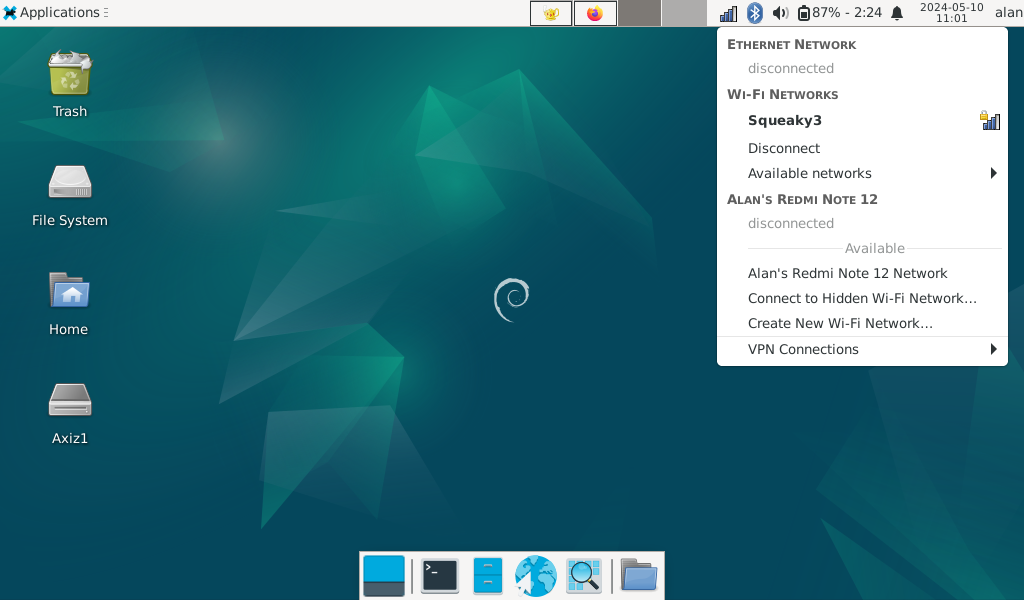
The nm-applet dropdown
Extras At this stage the only extras that I have had to install on Xfce is Geany (my text editor of choice) and believe it or not BlueMan to access Bluetooth. Xfce has Network Manager installed and it isn't bothered about when I plug the mouse's dongle in, the WiFi still works. Although the nm-applet on the Xfce panel shows Bluetooth connections, it is easier to set up Bluetooth connections from BlueMan.
Something I do like having available on any Linux system is the compose key. I normally set this up quite soon after the installation process.
Thunar One thing I liked about the Thunar file manager is, like KDE's Dolphin, it is multifaceted. It can also be used as an SMB client and an FTP client. You just need to install two gvfs extensions: gvfs-backends and gvfs-fuse. Once these are installed, you can type the links into the Thunar address bar. The syntax for the SMB client is SMB://<SMB server ip address> and the syntax for the FTP client is FTP://<FTP server URL>. One thing that I would like to see is a simple method to link to a cloud server such as OneDrive or Google Cloud.
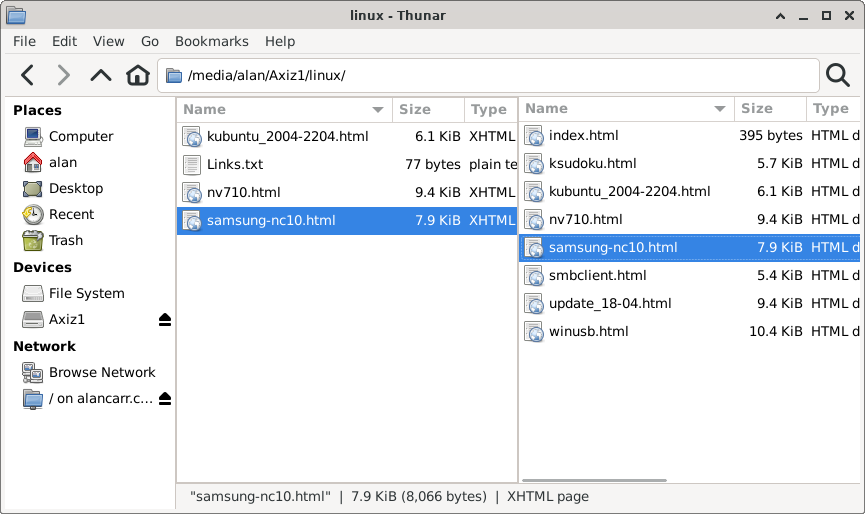
Thunar
The above pic shows the Thunar file manager in a split view mode. Note the Network options on the bottom of the side pane on the left. The address bar is pointing to my flash drive which is the shown on the left hand pane. The right hand pane is pointing to my FTP server. I have already used this with the left hand pane pointing to the SMB server and the right hand pane to the FTP server (ie, not using local storage).
Large dialog boxes This is not specific to Xfce, but all versions of Linux running on the NC10. With the small screen of the NC10, one sometimes runs into the problem of dialog boxes that run off the bottom of the screen. Dialog boxes normally don't have scroll bars so it becomes a problem to get to the OK/Cancel buttons. Dialog boxes also cannot be resized, so they cannot be made smaller to fit on the screen.
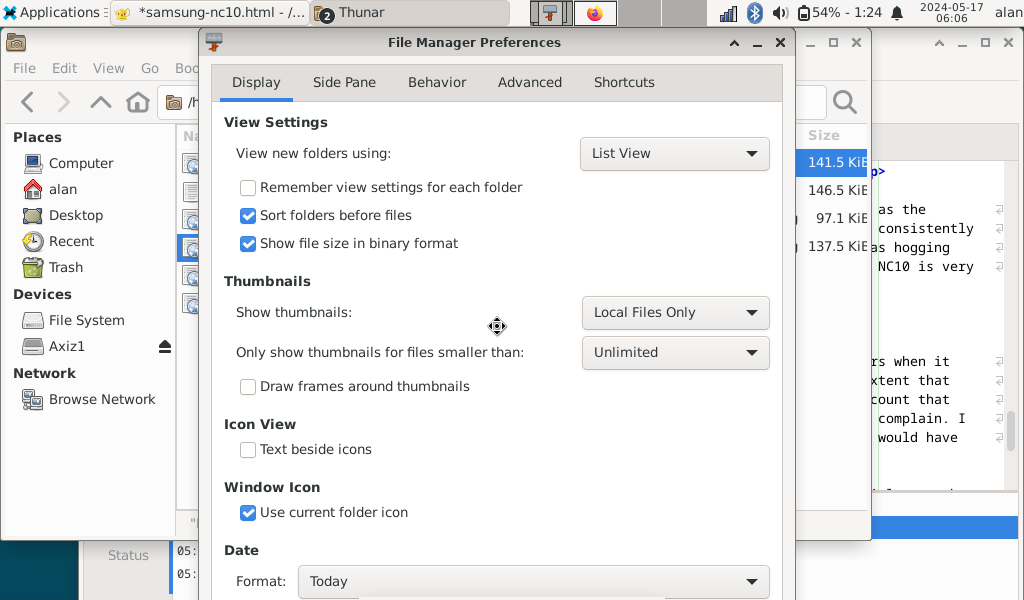
Thunar's Preferences dialog box
Clever people on the web say holding Alt while dragging the window with the mouse will solve the problem, but the top of the dialog window cannot move under the Xfce top panel. The only workaround is to press Alt-F7 and then drag the window upwards with the mouse.
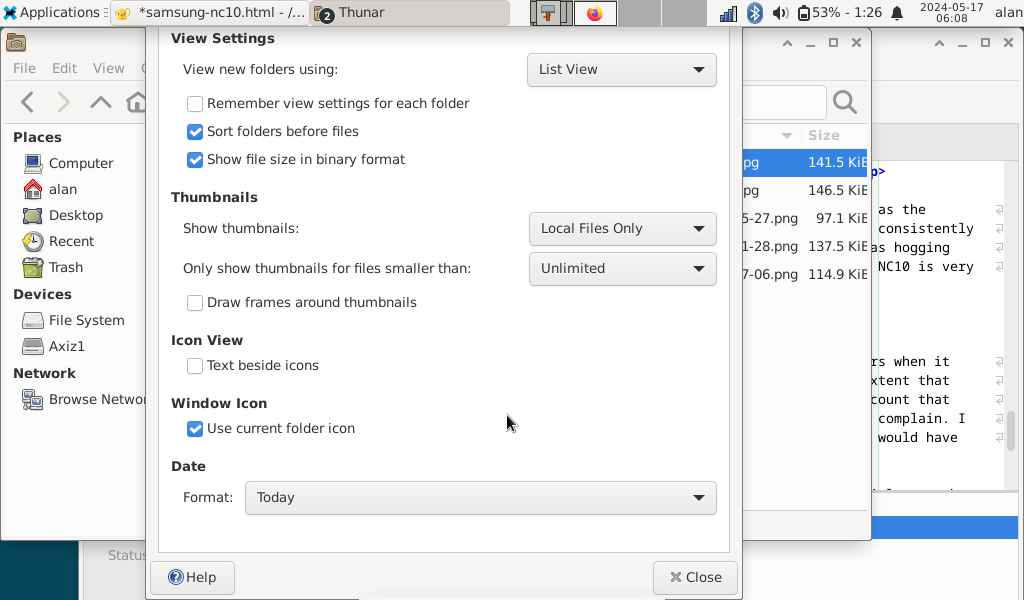
Thunar's Preferences dialog box moved upwards
Console Xfce calls this a Terminal Emulator from the bottom panel and Xfce Terminal from the Applications menu. With the top panel visible, the console window is too big for the NC10's screen. This window can be scaled using the frame's drag handles. However, a more permanent option is to resize the window from the console's preferences.
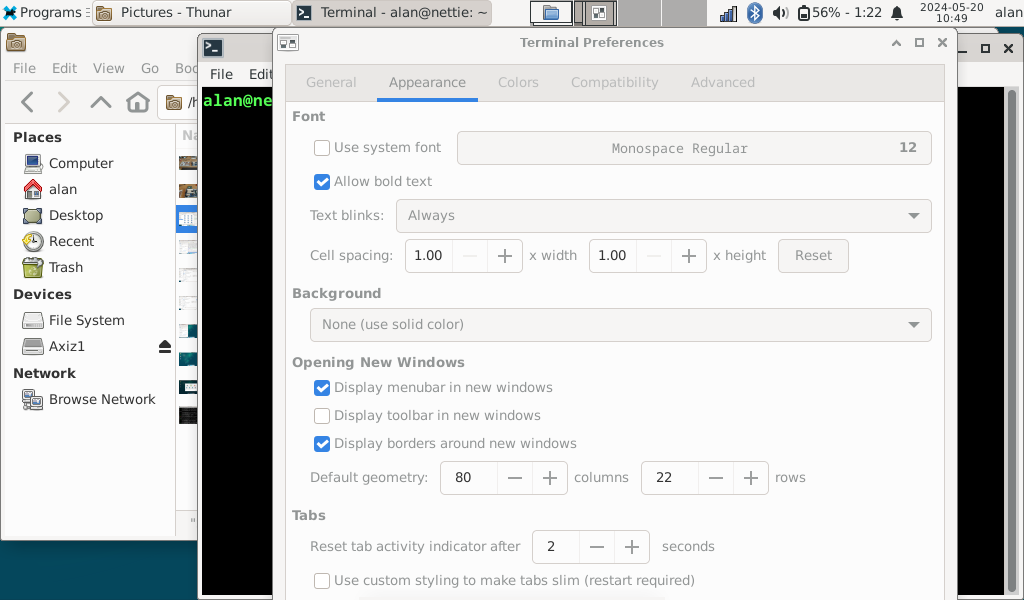
The console's preferences dialog
The default setting is 24 lines. This can be changed from the Appearance tab of the preferences. I found that 22 lines does the job.
Shutting Down There are two ways to get to the shutdown menu. One is from the Applications menu (Log Out), the other from your username on the right of the top panel.
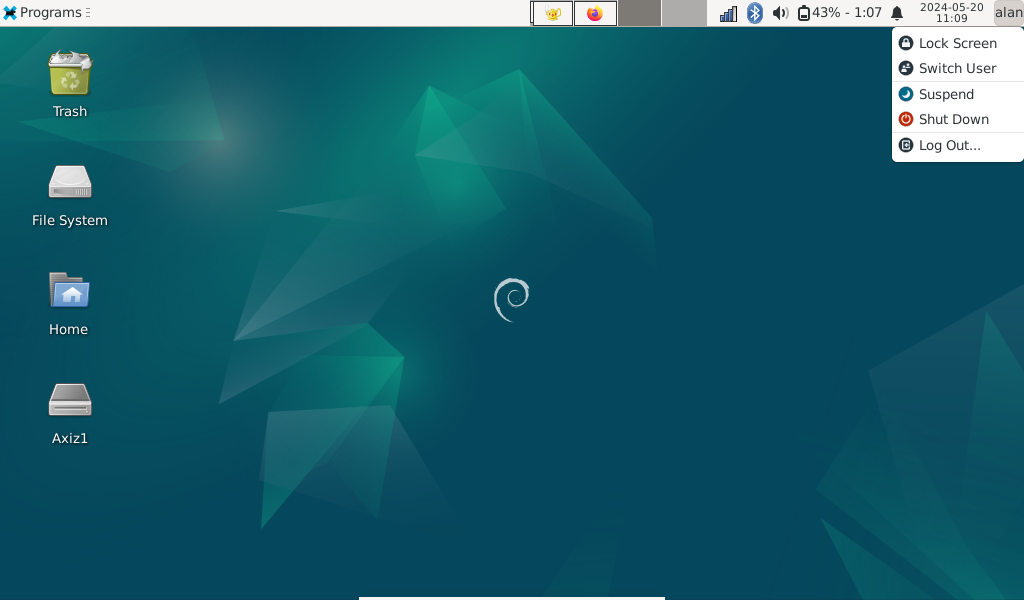
The Shutdown menu
The Shut Down item does what it says and shuts down the machine with no fuss. The Log Out item brings up another dialog which has some other options to shutting down.
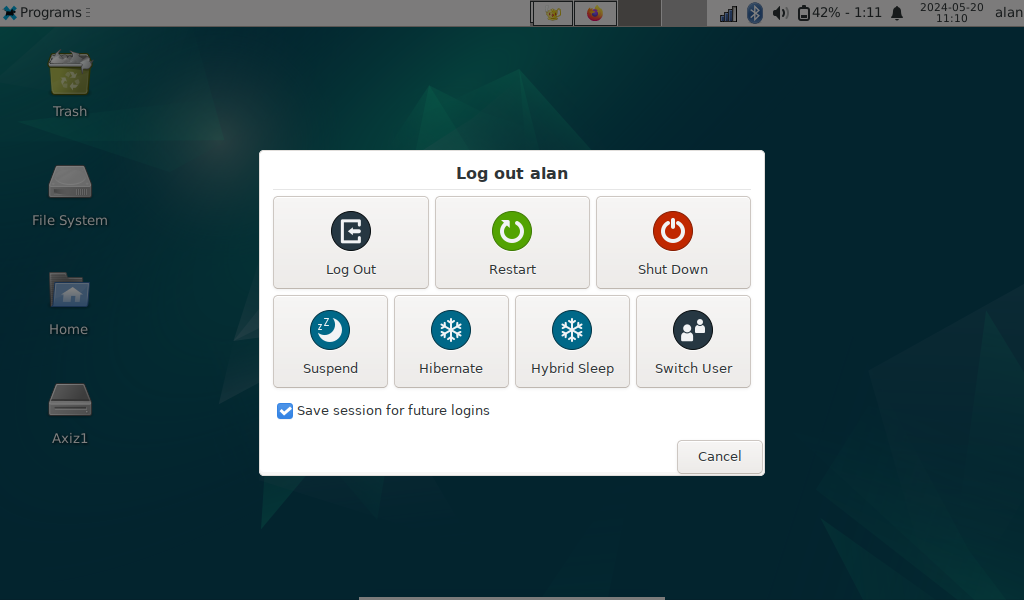
The Log Out dialog box
A useful option from this dialog is Restart.
File associations There were some really weird file associations when double clicking a file from Thunar. One was using Firefox to open images even though there is an image viewer (Ristretto) installed. The other was using Libre Office Writer to open plain text files. Here, Mousepad or Geany could do the job more efficiently.
This was easy enough to fix: from Thunar right click on the file type in question; then select "Open With"; then select "Set Default Application".
Case sensitivity The only gripe I have had with Xfce so far is that Thunar refused to rename a file from one with upper case characters to all lower case (I wanted to change the name of this document from Samsung-NC10.html to samsung-nc10.html) and all I got was an error saying the file already existed. I could not even rename it from the command line with the mv command. It gave a similar error. I had to rename the file to something completely different, then back to to the lower case file name. Ironically, Thunar had no problems renaming the same file on the FTP server. I could only find one reference to this problem on the Linux Mint forums with my inadequate search terms. I have a feeling this is a Debian bug - since its inception in the 1970s, a Unix-like file system has been case sensitive: a.txt is different to A.txt.
Temperature Xfce definitely uses more resources than LXDE as the NC10's CPU fan is often on. Running Conky shows that the temperature is consistently between 50°C and 55°C. Nothing in the Task Manager jumps out at me as hogging the CPU (other than the Task Manager itself). On powering down, the NC10 is very much warmer than with other GUI frontends I have tried.
The more I use Xfce, the more I like it.
Samsung NC10: Final Thoughts
Battery The battery used to last between six and nine hours when it was new. Gradually with time, the battery has degraded to such an extent that the charge lasts just over two hours. However, if one takes into account that (at the time of writing) the battery is 15 years old, one shouldn't complain. I doubt whether a cellphone battery (or even a modern laptop battery) would have lasted this long.
White screen of death This has been mentioned in many articles on the web, including the Wikipedia article mentioned in the first paragraph (I will update this Wikipedia article shortly as it is rather dated, and all of the reference links broken). Unfortunately, many other articles are disappearing with time and only old forum references seem to be still available. Poor quality ribbon cables between the main board and the screen is the source of the problem. I have had the white screen of death on occasions, but can get around this by folding the screen further back (away from me).
The white screen of death looked as though it had finally killed the NC10. I could no longer get it to go away by folding the screen back - it was at its maximum. I went searching the web to see if there were any fixes that looked as if they could work. Most involved taking the screen apart to either replace the ribbon cable (which I am sure is no longer available) or rewiring bits of the ribbon cable which looked like way too much work. One other possibilty which I read on a forum somewhere (which sounded rather tongue-in-cheek), was to whack the screen on the back in the lower left corner, where the ribbon cable goes through to the computer. I did this, and lo and behold, it worked. I have used the NC10 multiple times since this brute force fix, with no white screen (apologies to the person who mentioned this as I did not think of saving a link to his or her post).
I will keep on using this device until it dies. Having a proper touch keyboard is worth its weight in gold. I have tried bluetooth keyboards with my various tablets, but the response time is atrocious if you are a touch typist.
The full specifications of the Samsung NC10 can be found here.
Update 14 May 2024 Francois finally convinced me that the NC10 really does need an SSD. It really does make a noticeable difference to the performance!
(updated: 17 October 2025)
Setting up the Compose Key on a Samsung NC10
